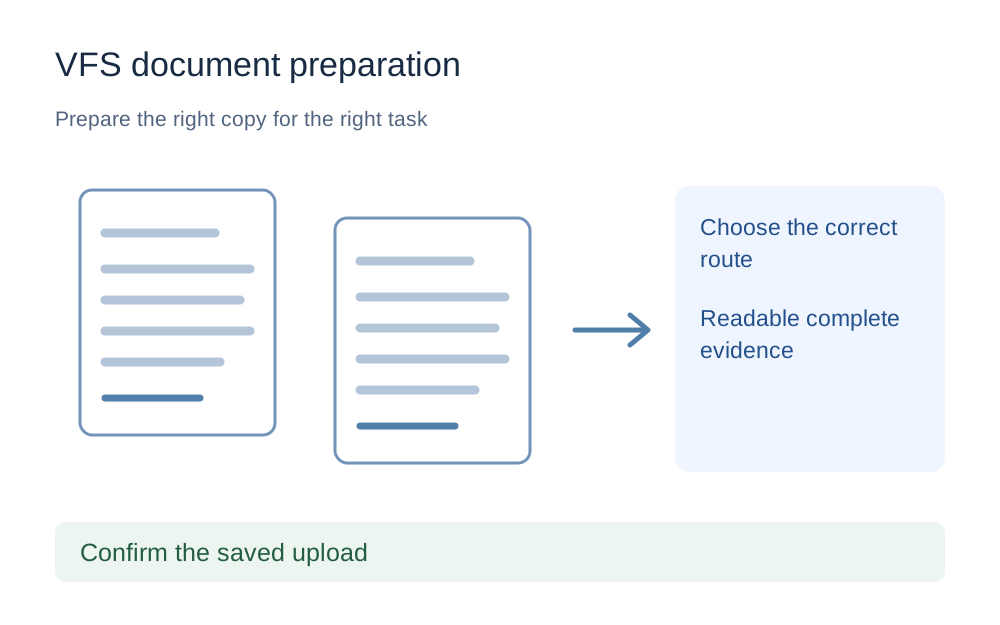
Start with the destination and application centre
Check the destination country, the country you are applying from and the application centre named in your booking. Keep the official application reference beside the upload page. A general search result about VFS can lead to guidance for a different route, and that is not a reliable basis for choosing a file-size target.
The official UK-visa FAQ reviewed for this guide is on VFS's Slovenia-to-UK service. It gives practical upload troubleshooting advice, but it does not establish a universal file cap for every VFS service. This guide therefore sends you to an empty checker rather than loading an arbitrary 5MB or 10MB rule. Fill in the limit shown on your own receiving page.
Read every condition around the attachment field
Look for the accepted formats, the maximum bytes or megabytes, whether the limit is per document and how categories are arranged. A bank statement, a photograph and a passport page may not belong in the same field. Keep a small note of these requirements before leaving the page to prepare the files.
If the page gives only a vague message such as 'invalid file', do not assume the size is responsible. Check that the file opens, that its actual contents match the extension and that it is not password-protected. A file named evidence.pdf may still contain image bytes if someone changed the filename rather than exporting a real PDF.
Make a complete scan before compressing it
Use a flat, well-lit capture with the necessary edges and text visible. Inspect small characters, dates, account headings and any reference numbers that the document is meant to show. A sharp thumbnail is not enough: enlarge the saved copy and check the faintest information before you decide it is ready.
Do not edit the underlying information to make the page neater. The aim is a readable copy of the requested evidence, not a redesigned document. Avoid hiding content under annotations, deleting apparently unimportant pages or replacing an original statement with a retyped summary unless the receiving authority has specifically requested that form of evidence.
Choose PDF operations carefully
If a field expects one PDF containing several pages, combine those pages in the required order. Open the combined file and check its page count before uploading. If the portal asks for separate categories, do not merge every category together just because it is easier to manage one attachment on your computer.
Our PDF compressor uses lossless repacking and may leave an already efficient scan unchanged or refuse an unreachable size target. It is not a promise to force a large evidence bundle below any limit. For image-heavy documents, a new export from the source can be more useful than repeatedly repacking the same oversized PDF. Preserve the original and check readability after any permitted change.
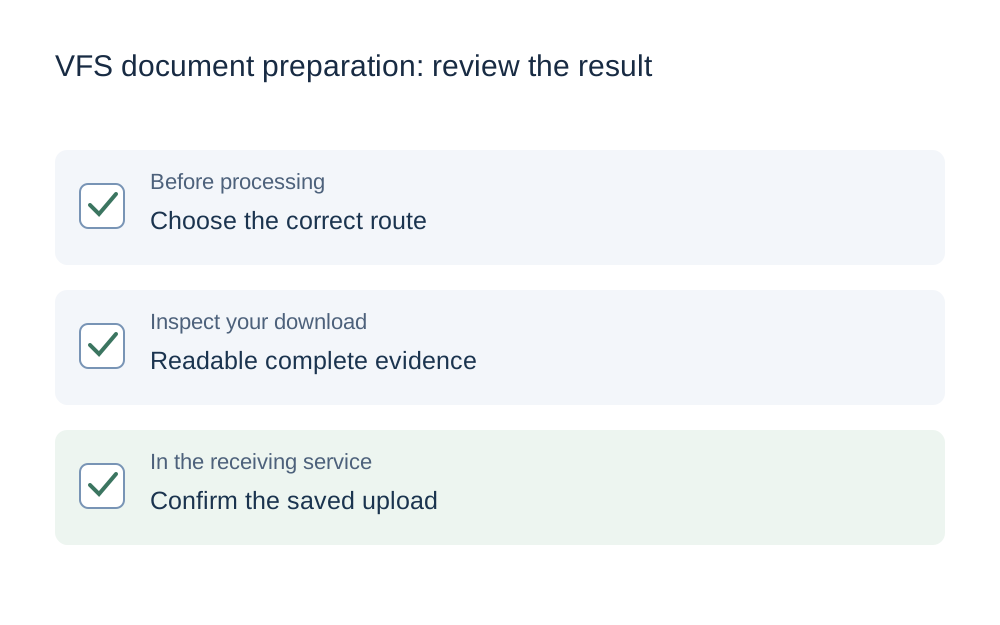
A successful conversion is only one part of the check
A phone may save a photograph in HEIC while a particular upload field expects JPEG. Use a proper converter when that conversion is appropriate. The resulting file should open as a JPEG and contain the intended page. Changing the suffix alone leaves the encoded format untouched and can produce a different rejection.
After converting, compare both size and dimensions with the receiving instructions. An image can become larger when converted, and a very small image can lose important text. The checker reports what it can measure; it does not inspect visa eligibility, verify a passport or decide whether a piece of financial evidence satisfies the application requirements.
Separate file errors from browser or connection errors
The reviewed VFS FAQ recognises that upload difficulty can come from network and system problems as well as document preparation. If several properly prepared files fail in the same way, note the exact point of failure. A stalled progress indicator and an immediate unsupported-type message suggest different things to investigate.
Use a stable connection, keep the application open in one tab and avoid repeatedly submitting the same attachment. If you try another supported browser or a fresh session, make sure you can return to the correct application. Do not delete your only local copy or assume that refreshing the page confirms a previous upload completed successfully.
Check what is saved before your appointment
The VFS FAQ reviewed here describes deleting and uploading documents again before the biometric appointment, with a different route for documents after biometrics. That distinction matters, but you should still check the instructions for your own service and stage. This page does not promise that replacement is available at every centre or after every deadline.
Review the portal's saved list and any available previews. Match the filenames to your document checklist, including all intended pages and the correct person where an application involves several family members. Keep a private record of successful submission and appointment information. A local download from this website is not evidence that the receiving portal has saved the file.
Escalate a blocked upload through the official service
When the file appears suitable but the portal will not accept it, contact the support route shown for your application centre. Describe the file type, exact size, browser and error message. Do not include full financial records or identity-document scans in an ordinary message unless the official service explicitly asks for them through an appropriate channel.
Some routes offer document scanning assistance, but availability, cost and rules depend on the service. Do not buy help on the assumption that a smaller PDF is your only option. First establish whether the problem is the file, the upload step or the application stage. Make My Files Work is independent of VFS Global and cannot alter bookings or document deadlines.
Questions that come up
Is the VFS upload limit always 10MB?
No universal limit was verified for all VFS routes. Use the value displayed for your own destination, country of application and upload field. A number from a different service can be wrong even when the VFS branding looks familiar. The checker deliberately starts without a guessed size rule for this guide.
Can I upload a ZIP containing all my evidence?
Only use an archive if the receiving service explicitly accepts it. Our batch tools can produce a ZIP as a convenient download container, but that does not make ZIP an accepted visa-evidence format. Extract the prepared files and follow the required document categories and individual attachment instructions.
Why does a technically valid PDF still fail?
The portal may have requirements beyond format and bytes, or the upload session may have failed. A valid PDF does not prove that the evidence is complete or acceptable for the application. Read the precise error, check the receiving account and seek route-specific support when the technical properties already match.