Make sure the UKVCAS instructions apply
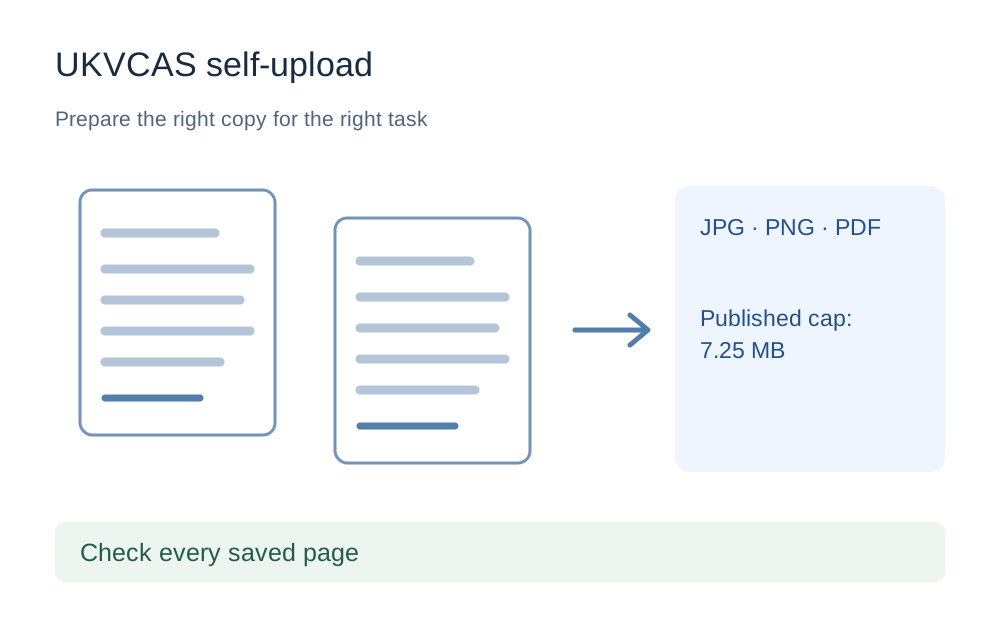
Check the service name on the booking and the account where you are adding evidence. TLScontact handles different workflows, and a familiar logo is not enough to establish that two upload systems have the same rules. This page does not transfer UKVCAS limits to a consular application handled at a different centre.
The linked UKVCAS help centre is the source for the numerical preset. Its scope and review date appear beside the checker controls. If your account shows a different requirement, use that requirement and change the values before checking a file. Editing the supplied values changes the displayed source status, so a customised limit is not presented as the unchanged published preset.
What the 7.25MB setting actually checks
The preset uses 7,250,000 bytes as a conservative interpretation of the help page's 7.25MB wording. That avoids allowing a larger binary-megabyte file merely because a rounded label looks similar. The checker displays the chosen unit and exact byte ceiling so you can compare it with any more precise information given in the receiving form.
This is a maximum-size test, not a quality score. A tiny scan may fit and still be unreadable, incomplete or the wrong evidence. No numerical preset can confirm the document's relevance to your application. Read the document request separately and keep an intact original while preparing any smaller submission copy.
Prepare one document category at a time
Use the categories shown in your own upload workflow to organise the evidence. Name local working copies clearly enough that you can recognise them without opening every file, but avoid adding unnecessary passport numbers or private information to filenames. Check the requested period and person before choosing a statement or certificate from a busy Downloads folder.
When several pages belong to the same document, check whether the service wants one combined file or separate attachments. Do not join everything into one PDF simply because the merge tool is available. A tidy local folder and a short checklist make it easier to see whether a page is missing before you start the final upload.
Check the saved scan, not the camera view
After photographing a page, open the file that was actually saved. Inspect the edges, faint print and any small reference numbers. Reflections on a glossy document can hide information even when the surrounding page appears sharp. Retaking the photograph is usually a better response to glare than increasing contrast until details look different from the original.
Make sure the image is upright and complete. If a document has several pages, examine each one at a comfortable reading size rather than relying on the thumbnail strip. Compression cannot supply content that was outside the frame. The smallest possible file is not the goal; a complete, readable copy within the receiving rules is.
Convert only when the actual format needs changing
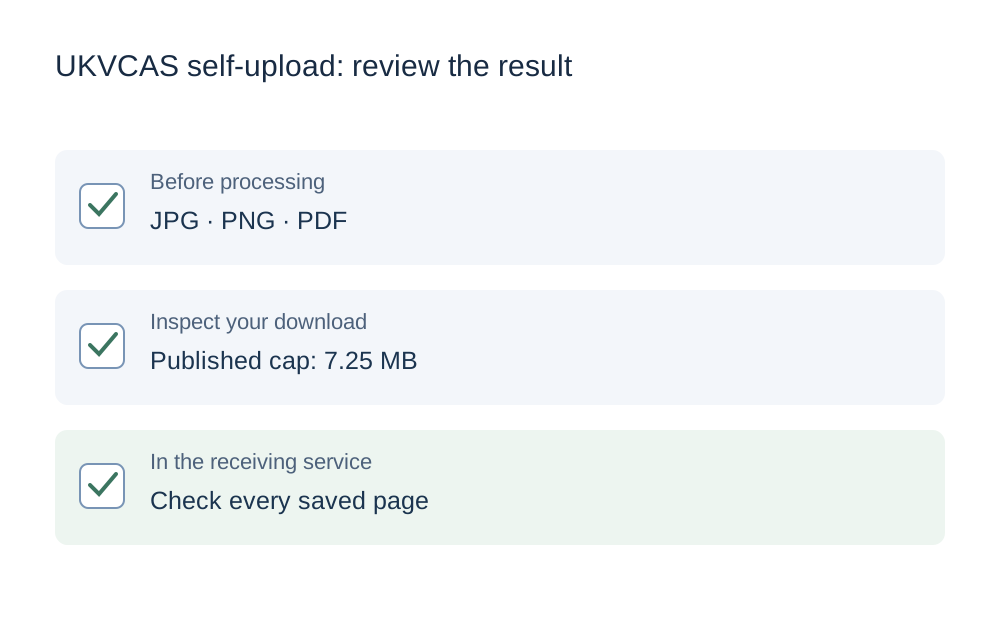
A JPEG filename should contain JPEG image data. If a phone produced HEIC, changing .heic to .jpg does not perform a conversion. Use a proper conversion tool for a supported source and then inspect the resulting picture. This site offers HEIC-to-JPG processing locally, though some HEIC variants may not decode in a particular browser.
PDF is useful when several document pages need to stay together, but it is not automatically the right format for every image field. Follow the accepted formats shown in the UKVCAS account. A download container such as ZIP is different from the individual document formats listed by the service, so extract files from a batch download before deciding what to attach.
When the PDF is still too large
Try the PDF compressor with a copy of the document and read the result. It performs lossless repacking rather than silently flattening the document into low-resolution page images. It can therefore report that a file is already efficiently stored or that a target cannot be met. That refusal is preferable to a download whose size or contents are misrepresented.
If the document began as scans, return to the source capture or export settings where possible. Reduce avoidable blank margins only when doing so is appropriate and does not remove required information. Do not delete necessary pages or alter a digital signature to chase a size target. Ask the official service about a suitable route when a complete readable copy cannot meet the displayed limit.
Treat browser troubleshooting as a separate step
TLScontact's help centre suggests browser-related troubleshooting such as clearing relevant cached data or trying a private window. Before doing that, make sure you know how to return to the correct account and have kept your prepared files locally. A fresh session is useful for a broken page, but it does not repair the actual bytes of a malformed document.
Try one controlled change and note the result. If the same file is rejected instantly for its type, investigate format. If an upload stalls or several files fail unexpectedly, note the connection and browser behaviour. Avoid repeatedly clicking the upload control while the page is still working; that makes it harder to distinguish the current attempt from an earlier one.
Check the account's confirmation before moving on
Review whatever saved-file list or confirmation the service provides after each submission. A file being present on your laptop is not the same as being saved in the application. Where a preview is available, compare it with the local copy and make sure the expected pages remain visible and in order.
For unresolved problems, use the support route for your UKVCAS service and give the error wording, file format, byte size and application stage. Do not send sensitive evidence to unrelated websites to diagnose it. Make My Files Work is an independent preparation tool and cannot change an appointment, extend a deadline or decide whether immigration evidence will be accepted.
Questions that come up
Does the preset cover every TLScontact service?
No. It is labelled for the UKVCAS self-upload instructions reviewed for this guide. Other TLScontact services may publish different limits and formats. The receiving account's current instructions take priority. Clear or edit the preset when you are using a different route.
Why is the checker limit shown in exact bytes?
MB labels can be interpreted differently by software. This preset uses a conservative 7,250,000-byte ceiling and displays it clearly. It does not assert that the receiving service documents that exact multiplier. A more precise rule in your account should be used instead.
Can the tool make evidence acceptable for UKVCAS?
It can help with technical preparation of supported files, not the substance of the evidence or the application's eligibility. Check the document request, every page and the final upload confirmation. Technical checks, appointment booking and acceptance of evidence are separate matters.