Start from the official application or council service
Use the GOV.UK application route or the official council information it directs you to. Check that you are completing the right task for the person who needs the badge, particularly when helping a relative. Keep their application details separate from your own files and avoid choosing evidence from another household member's folder by mistake.
This guide concerns the practical handling of digital copies. It does not assess a disability, decide eligibility or explain how a council should determine an application. For those questions, use the official scheme information and the relevant council. The local file tools can help inspect a photo or PDF, but they cannot certify that an application meets the scheme's criteria.
The badge photo and evidence have different purposes
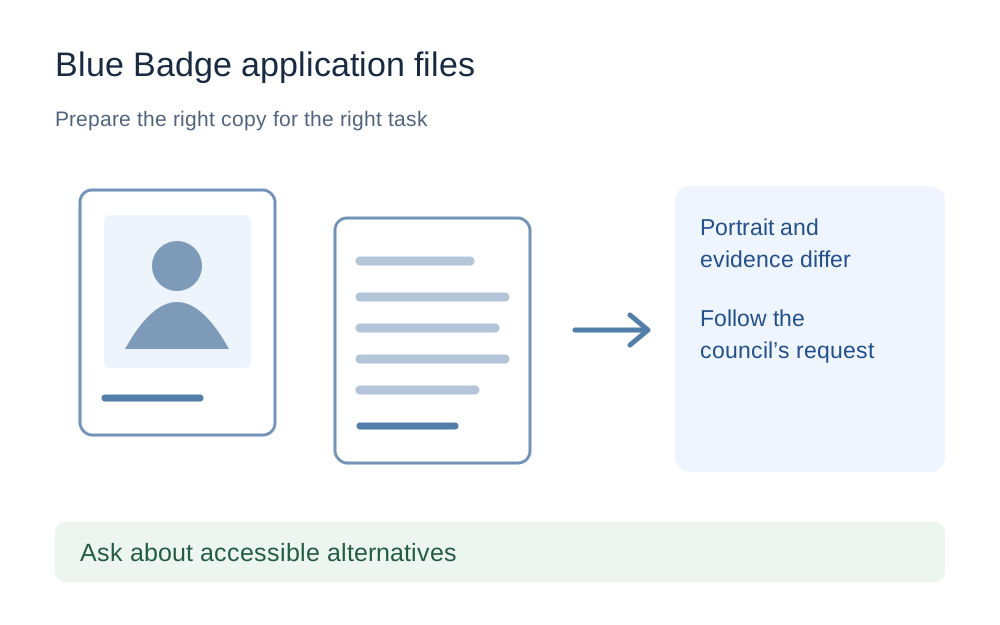
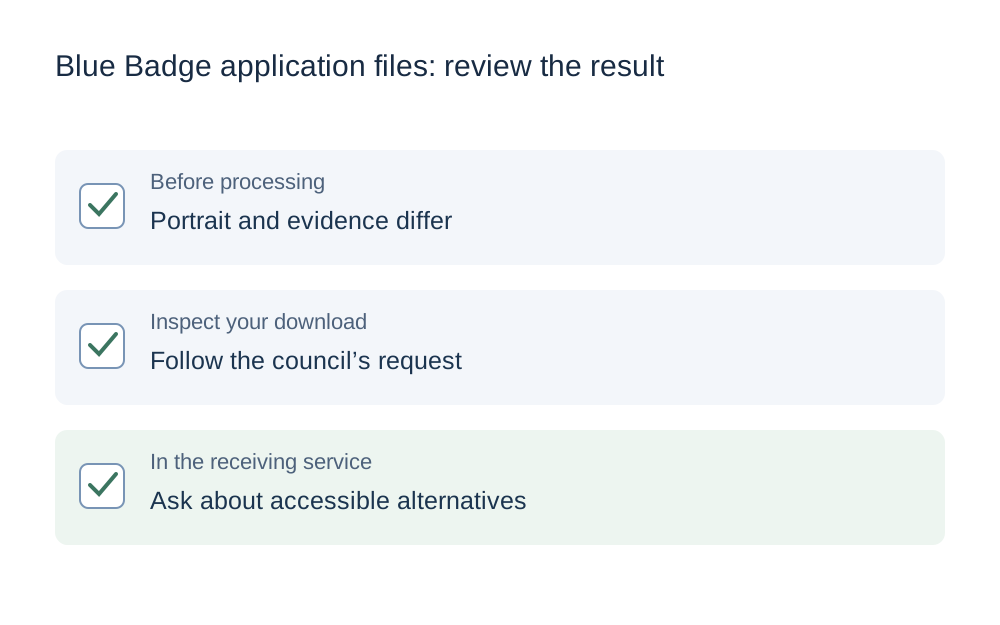
GOV.UK describes a recent head-and-shoulders digital photograph for the badge. Supporting uploads may instead show requested identity, address or other evidence. Do not turn a photograph of an identity document into the badge portrait merely because it contains a small picture of the applicant.
Prepare the portrait as its own file and label the evidence copies so they are easy to distinguish. Check the image selected in each field before continuing. When several photos have been taken on a phone, the file picker can show them with nearly identical names, so the visible content is a more useful check than the filename alone.
Follow current evidence requests, not an old checklist
Requirements and verification methods can change. For example, the Department for Transport's guidance for England says that from April 2025 qualifying PIP awards should be checked by local authorities through the relevant DWP system rather than routinely requesting the award-letter upload in the online application. That is a reason to follow the current form, not to supply old checklist items automatically.
Other evidence can still be requested according to the application and council process. Read the request addressed to you and ask the council if it is unclear. Do not upload private medical or benefit documents solely because a general web article mentions them. This guide deliberately avoids prescribing a universal evidence bundle for every applicant.
Check the local file rules before compression
Look beside the actual attachment control for accepted formats, maximum size and any photo dimensions. A council may publish practical instructions for its route, but those numbers are not automatically the limits for every Blue Badge application. The general official sources reviewed here do not establish one universal national byte ceiling.
The checker therefore opens without a guessed Blue Badge size preset. Enter the rule your receiving page supplies and choose the correct unit. If you are preparing a supporting PDF rather than the badge portrait, check that field's requirements separately. A square-image condition is not appropriate merely because it is useful for a different platform's profile photograph.
Take a readable document photo
Place the requested document flat and use even light. Inspect the saved image for reflections, shadows and missing edges. The necessary information should remain readable when the picture is opened, not just when you remember what the paper said. Retaking a blurred capture is more useful than repeatedly compressing it.
For a multi-page document, check which pages have actually been requested and keep them in order. Avoid combining unrelated evidence into one file unless the receiving instructions ask for that. If a PDF is appropriate, open the new document after merging and confirm the complete intended pages are present, upright and legible.
Keep the portrait faithful to the applicant
Read the official photo instructions for the relevant scheme and application. Do not use filters or appearance changes as a way of making the file look more polished. The file checker measures technical properties and does not decide whether the portrait meets likeness, background, composition or accessibility-related requirements.
If the source photo is unsuitable, arrange an appropriate new capture rather than trying to rescue it with severe resizing. When help is needed with the application or photograph, contact the council about the available route. A file-size tool should not become an additional obstacle for someone who cannot comfortably use a particular camera, browser or upload interface.
Use conversion only when the receiving field needs it
A phone can save an image in HEIC even when an upload field expects JPEG or PNG. Check the accepted formats, then make a genuine conversion where needed. A renamed extension does not change the image encoding. Open the output to confirm that it shows the intended photograph rather than a screenshot or an unrelated image.
Compression can reduce dimensions and affect detail. Review the result before attaching it, especially where it contains small address text or a faint printed date. Our PDF compressor uses lossless repacking and cannot promise to reduce every scan. Keep the best original copy and stop if a smaller version no longer communicates the requested information clearly.
Know when to use the council's alternative route
Official guidance explains that applicants who do not upload documents may need to supply copies to the council through its process. Check what your council offers rather than assuming you must solve every problem through the same online file picker. Use the official contact details and ask how to provide the requested material appropriately.
After any online submission, retain the application reference and check the confirmation provided by the service. A file downloaded from Make My Files Work is only a local preparation result. It does not submit a Blue Badge application, prove that the council received the evidence or guarantee a decision. Keep private copies securely and avoid posting sensitive documents into general troubleshooting messages.
Questions that come up
Is there one Blue Badge photo-size limit for the whole UK?
Do not assume a limit from one council applies everywhere. Check the current application field and relevant council instructions. The official general sources used here do not establish a single byte cap, so the checker does not preload one as a supposed national requirement.
Do I always need to upload a PIP award letter?
Follow the current form and council request. The Department for Transport's England guidance describes a change from April 2025 to local-authority verification of qualifying awards rather than routinely asking for that upload online. This technical guide cannot determine the evidence required for an individual application.
What should I do if uploading is not practical for me?
Contact the council through its official route and ask how to supply the requested copies. Government guidance describes providing documents to the local council when they are not uploaded. Do not send private evidence to unrelated contacts or assume that repeated compression is the only way to complete the process.