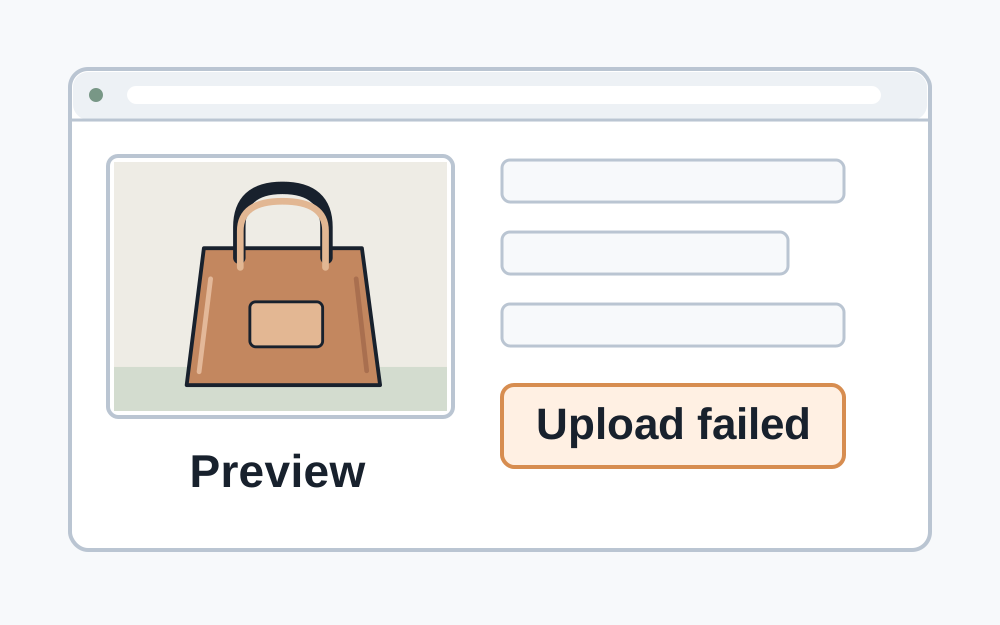
Notice when the failure happens
An immediate rejection after selection often gives you a file-related clue, such as an unsupported format or excessive dimensions. A transfer that starts and then stops may point towards size, connection or service problems. These are useful observations, not definitive diagnoses: websites can perform checks at different stages.
If the image appears in a preview but the final form fails, do not assume that the attachment has been submitted. A preview can be generated on your device before anything reaches the receiving service. Look for the site's own confirmation or receipt after submission, especially where a deadline matters.
Copy the error wording before dismissing it. Note which field failed and whether other attachments were selected. A short record prevents repeated guessing and gives the organisation something concrete to investigate if the problem persists.
Confirm the accepted image format
Read the formats listed for this particular upload. JPG, PNG, WebP and HEIC are not interchangeable labels. A site that can show a WebP image elsewhere may still restrict an application field to JPEG. Check the rule for the action you are taking, not just what the site displays.
A filename ending .jpg is not proof of JPEG contents. Make My Files Work's inspector compares supported file signatures with the name. If the detected format differs, decide whether the name is wrong or whether a real conversion is needed. Changing .heic to .jpg will not teach the receiving site how to decode HEIC.
Use an actual supported conversion when necessary and inspect the saved output. Transparent areas need attention when moving to JPG. A JPEG export can also change storage size and visible detail, so passing the format check should lead to another size and quality review.
Check dimensions as well as bytes
A photograph can be below the maximum MB figure yet exceed a pixel limit. Conversely, an image at the requested width and height can still contain too many bytes. Compare each stated requirement separately. Do not use the on-screen preview's apparent size as a substitute for the saved image's dimensions.
Interpret width and height in the correct order. A portrait crop and a landscape crop may use the same two numbers in reverse. Where a square is required, both dimensions must agree, but a square shape alone may not satisfy a minimum or exact pixel size.
Leave room below a maximum byte limit when you can preserve useful detail. Be alert to rounding and decimal versus binary units. The site's published exact byte limit is more informative than two interfaces displaying similar MB labels.
Make sure the source has finished downloading
A photo library can show a thumbnail before the full original is available locally. Cloud storage, a messaging app or an interrupted download may leave you selecting a placeholder or incomplete copy. Open the intended file fully in a trusted viewer and confirm that the complete image can be accessed.
If the source will not open, obtain it again from the original location. A converter cannot reliably reconstruct missing data from a truncated transfer. Do not repeatedly save the broken copy under different names; that creates more confusing versions without restoring the photograph.
Check that you have not accidentally downloaded a web page instead of the image. A site may require you to use its download action rather than save a preview or a sign-in response. File size and signature information can help identify that discrepancy, but an unfamiliar result should be investigated at the source.
Keep image quality tied to its purpose
For a product photograph, inspect colour and visible detail. For a scanned document, look closely at names, dates, reference numbers and page edges. For an official portrait, use the relevant official guidance on framing and alteration. A file tool cannot judge all those content requirements.
A screenshot may seem convenient, but it can add interface elements, crop out evidence or reduce resolution. Prefer a proper export from the original unless the recipient explicitly asks for a screenshot. Repeated JPEG saves can also accumulate visible damage, so return to the original when changing your approach.
If the picture is too blurred to read, shrinking it further will not improve the evidence. A fresh photograph in better light or a higher-quality original may be needed. Do not confuse a technically valid image with a useful one.
Check the upload session without losing your work
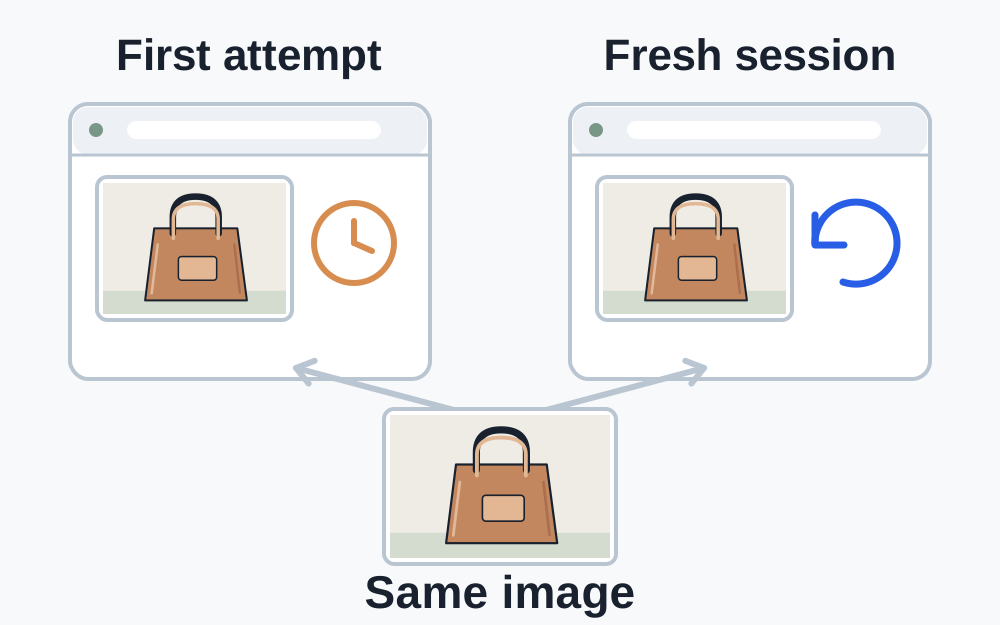
Save unsent form answers before refreshing or signing in again. Some sites time out while you are preparing attachments. A fresh session can help with that situation, but it does not change the file requirements. Keep the image unchanged for the first controlled retry so the comparison remains meaningful.
Use a browser the receiving service supports and check its current service-status information if available. A managed work or school device may have policies affecting transfers. Ask the organisation's support team about those policies rather than trying to bypass them.
A different permitted connection or browser can help isolate a problem, but avoid changing several variables at once. Record what you tried. If every suitable image fails through the same form, the receiving service needs to investigate its own upload path.
Use the checker for measurable questions
Make My Files Work checks selected files locally and can compare their format, size and available dimensions with rules you enter. It does not log into the destination or inspect that site's account permissions. Empty rule fields do not mean the corresponding requirement has passed.
The local processing tools have their own resource limits. A picture above the per-file cap needs a suitable export in its original application before this site can process it. An unreadable image is reported honestly; it is not made valid by a reassuring-looking preview.
After any correction, choose the output for a fresh check. Keep its filename distinct enough that you can recognise it in the destination picker. Once the measurable rules agree, stop reducing quality and investigate any remaining non-file cause.
Questions that come up
Why does the same photo upload from one device but not another?
The devices may select different copies, export formats or dimensions, or they may use different upload routes. Compare the actual selected files first. If they are equivalent, investigate the browser, session and service support rather than assuming the photograph itself changed.
Can Make My Files Work guarantee the image will be accepted?
No. The receiving service may assess account access, image content, security checks or rules that have not been supplied. A local result covers the properties measured against your entered requirements and helps narrow the investigation.
What should I send to support?
Provide the exact error, upload field, time, browser and the image's measured format, size and dimensions. Mention whether other permitted images fail too. Start with those facts rather than attaching a private photograph to an unsecured message.