The current UCAS upload requirements
UCAS lists a maximum of 5MB per document, up to five documents in one upload and up to thirty across the application. Its listed formats are PDF, JPEG, JPG, PNG, DOC, DOCX and ODT. It also checks uploaded documents for security issues and rejects password-protected files. These details were checked on 14 November 2026.
The guidance says supporting uploads are optional and explains which sections may request them. Read the application instructions and the official guide for your circumstances. A university's separate applicant portal can have different requirements, so do not apply these limits to every document request merely because it relates to a UCAS application.
Match the evidence to the requested section
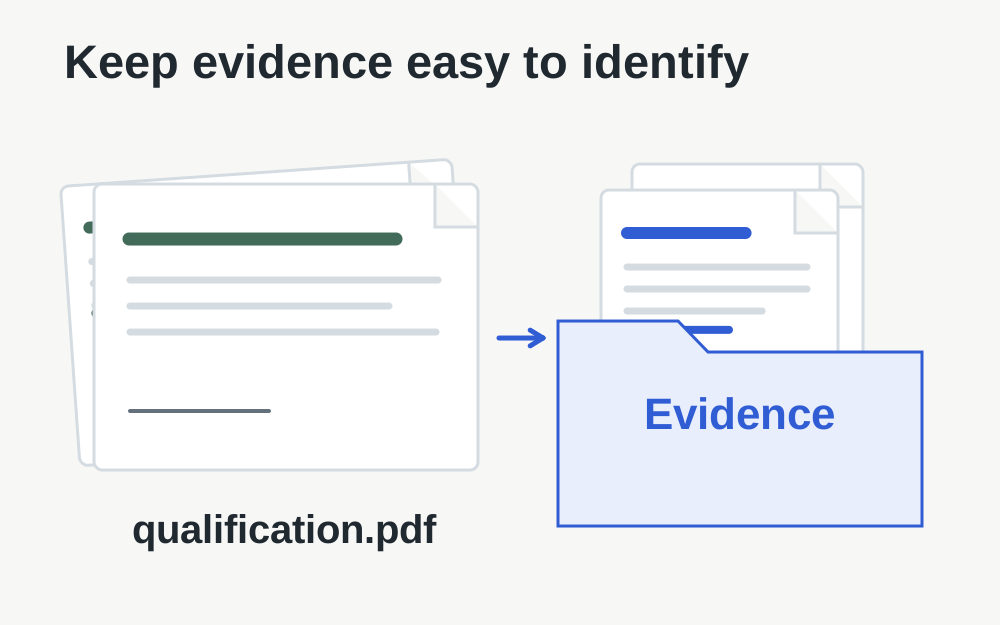
Check the section label, the document type and the person named in the document. A qualification certificate, a name-change document and a passport page have different purposes. Putting them together in one large file can make the evidence difficult to identify and may conflict with the instructions for separate sections.
Create a short working list before uploading. Note the required item, its filename and whether you have checked the final copy. This need not become a complicated spreadsheet; it is simply a way to avoid selecting an old version or forgetting a page. Do not add unrelated certificates merely because the upload control permits more files.
Open the exact document you intend to attach
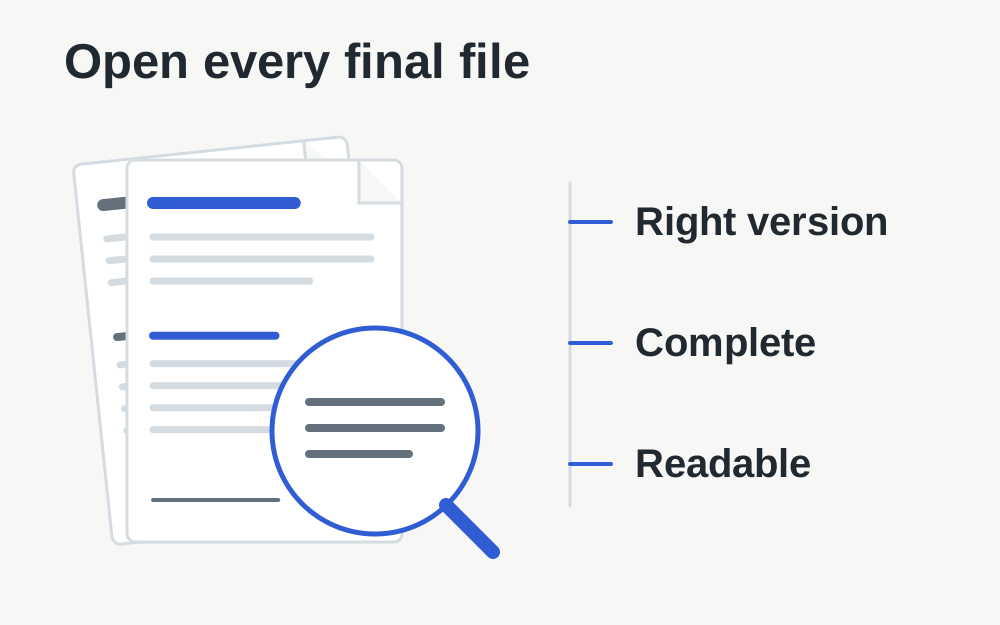
A folder can contain an original scan, an email download and a revised export with similar names. Open the selected file and check that it contains the complete relevant document. Look at dates, names, grades and any official marks. A successful local file check cannot tell you whether the evidence is current or belongs in your application.
Keep the original source safe and prepare working copies separately. If the document is a PDF, review each page rather than only its thumbnail. Check for an accidentally omitted reverse side, a blank sheet inserted by the scanner or a page captured at an unreadable angle. The file can be structurally valid while the evidence inside it is incomplete.
Make a readable copy without altering its meaning
Use a clear photograph or scan that preserves the information the receiving organisation needs. Check small print at a useful zoom level. Glare, shadows and camera movement can make a page difficult to read even when the file is large. A fresh capture with better lighting can solve more than repeated attempts to sharpen a poor image.
Follow UCAS's specific guidance for document types with security markings. Do not assume every document should be scanned in the same way. Avoid beautifying, removing marks or tidying text within official evidence. Technical preparation is about making the original information accessible, not making a certificate look different from the document issued to you.
If the document is larger than the limit
Measure the final copy and identify why it is large. A short scan made from very high-resolution page images can be much heavier than a text-based PDF. The PDF compressor here attempts lossless repacking; it does not promise to make every scan fit. If no useful reduction is possible, return to the scanner or source application for an appropriate export.
Inspect the new copy against the original. Keep required pages, signatures, marks and readable detail. Do not split or delete information merely to create smaller files unless that arrangement is appropriate for the request. UCAS directs applicants with oversized documents to contact their university or college choices about providing a copy directly; use the official instructions for that situation.
Check the actual format, particularly on a phone
The file extension is only a label. A supported format needs to be genuinely encoded as that type. If your phone photograph is HEIC, renaming it .jpg does not turn it into a JPEG. Use a real export or conversion when required, and review the resulting page for readability and correct orientation.
UCAS's guide says not to upload iPhone screenshots and does not list HEIC among accepted formats. That wording should not be taken to mean that every iPhone screenshot has the same encoding. The practical response is to follow the document guidance, supply a proper permitted copy of the evidence and inspect the actual file, rather than using a screenshot as a workaround.
Understand a security rejection
UCAS applies its own security checks. A file can be the correct size and still fail because it is protected or triggers another check. Make My Files Work is not an antivirus service and cannot reproduce UCAS's screening. A readable preview here does not prove that the receiving system will accept the file.
If a document is password protected, obtain an appropriate permitted copy from its source or the issuing organisation. Do not try to bypass protection on material you are not entitled to change. For a continuing security rejection, follow UCAS's guidance about providing documents to your choices when requested. Repeatedly renaming the same file is not a meaningful security fix.
Use filenames that help you make the right selection
Choose a clear filename identifying you and the document while following UCAS's advice on permitted characters. Check the filename after downloading any processed copy, because a tool may add an output suffix. Our safe-filename converter is a general utility and does not certify compliance with every institution's naming instructions.
Avoid putting unnecessary sensitive identifiers into filenames that may appear in screenshots or support messages. You need enough detail to distinguish the document, not a complete record of its contents. If several certificates have similar names, add a sensible distinguishing description. Check the attached list against your working list before moving on.
Review everything before the application is finally submitted
UCAS states that documents generally cannot be added or amended after the application is submitted to UCAS, with a stated exception when the linked school, college or centre returns the application. Take the pre-submission review seriously. Confirm that each file is readable and placed in the intended section before using the final submission action.
The official guide also explains that your school or centre cannot inspect the uploaded document contents for you. Do not assume another person has checked them because they reviewed other parts of the application. Use any available preview yourself, compare the attachments with the evidence list and retain your own final copies for reference.
If the upload still fails
Record the error wording and the field in which it appears. Confirm that the file opens locally and is fully downloaded from any cloud location. If several suitable files fail, save your progress and try a fresh supported browser session. Keep the document unchanged while testing a session problem so you can identify what actually made a difference.
Use the official support route or contact the university as instructed for the problem you have. Provide file properties and the error rather than posting private certificates or identity documents publicly. Our checks take place locally in your browser and do not submit the evidence, verify qualifications or determine an admissions outcome.
Questions that come up
Can I upload an HEIC file if I rename it JPEG?
No. The data remains HEIC after renaming. If a permitted document photograph needs conversion, use a genuine export and inspect the saved result. Also follow UCAS's instructions about the kind of evidence required; a converted screenshot is not automatically an appropriate document.
Does passing a local size check mean UCAS will accept it?
It only confirms a measured property against the value you entered. UCAS has its own format, security and application rules, and the document must be relevant and readable. Check its actual upload result and review the evidence before final submission.