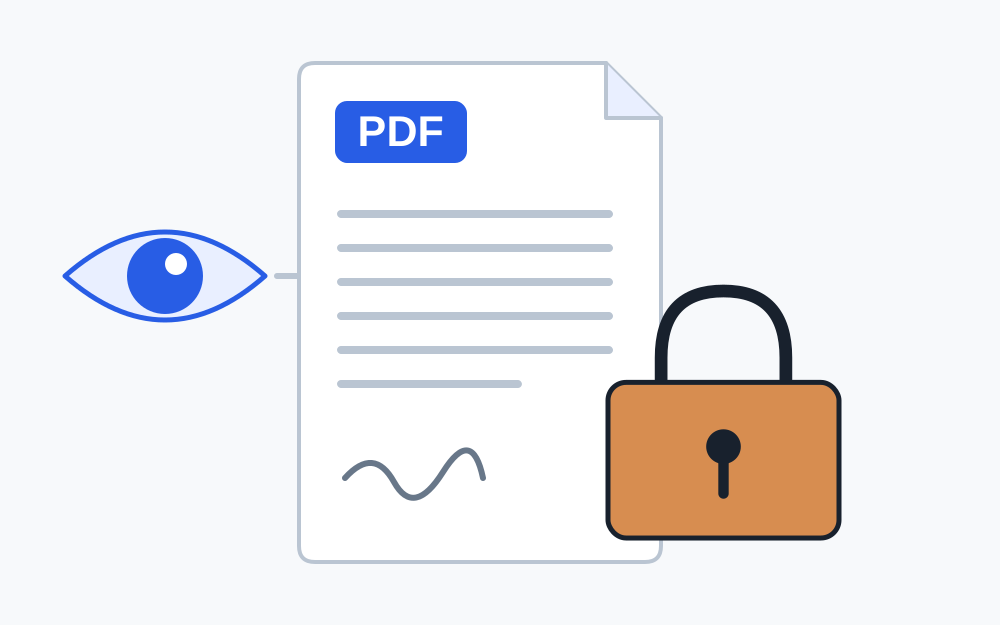
Opening the PDF is only one test
A PDF may require a password before its contents can be viewed. It may instead allow viewing while restricting printing, copying or editing. Adobe's documentation distinguishes document-open and permissions passwords. The fact that no password prompt appeared is therefore not enough to conclude that the document has no protection.
Your viewer may also remember a password or receive a file through a workflow that grants access. Another system does not necessarily share that access. Read the document's properties or security information in a suitable PDF application rather than drawing conclusions from the absence of a prompt.
Record the portal's actual wording. Password protected, encrypted, digitally signed and damaged describe different conditions, although a website may use an imprecise error. Do not assume that one generic rejection identifies the exact PDF feature involved.
Check the recipient's requirements
Some upload systems need to process documents automatically and may publish restrictions on encrypted files. Others provide an approved way to submit protected material. Follow the rule for the particular service and document category; there is no single acceptance policy for every PDF upload.
If the instructions do not explain what to do with a protected statement or certificate, ask before changing it. The issuing organisation may deliberately protect the document, and the receiving organisation may need the original version. A readable substitute is not automatically an acceptable substitute.
Keep any response that clarifies the required submission route. Where a deadline is close, report the issue promptly with the error text and a description of the document. Avoid waiting until the last moment while repeatedly trying transformations that may not be permitted.
Get an authorised copy without the unwanted restriction
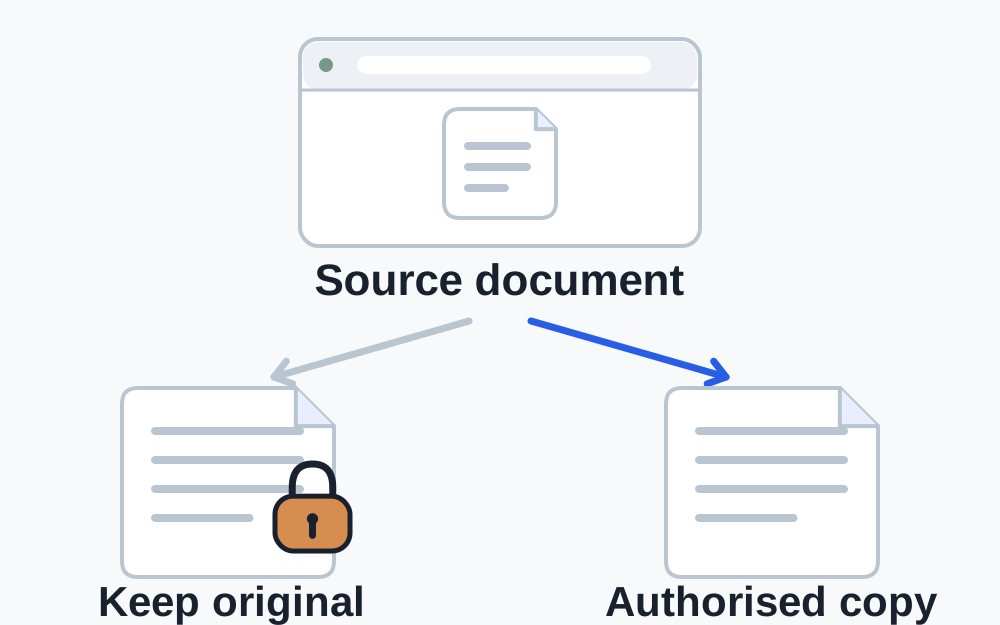
If you created the document, use the original application or an authorised PDF editor to export a copy with settings accepted by the recipient. If another organisation issued it, request an upload-suitable version or its approved alternative. Do not assume you are authorised to remove restrictions merely because the file is in your possession.
Keep the original unchanged and give any approved working copy a clear name. Check that all pages, values and identifying details remain present. A separate copy lets you compare the result and preserves the issued document for reference.
If a password is required for an approved submission, use the recipient's stated process for providing it. Do not include a password in a public filename or paste confidential access details into a generic error-description field. The file checker does not need your document password to explain its limitations.
Why ordinary compression is not the answer
Compression is intended to reduce stored size. It is not a general method for removing access controls. Make My Files Work refuses encrypted PDFs in its processing workflow rather than attempting to unlock them. Its PDF compressor repacks readable supported documents and does not offer a password-entry or decryption feature.
An encrypted document can also be too large, but those are two separate conditions. Resolve the authorised access and format requirements first, then measure the copy the recipient permits. Repeatedly feeding a protected file into different compressors does not establish that any output is suitable.
Renaming the PDF or placing it inside a ZIP leaves the PDF's internal protection unchanged. An archive also introduces a different upload format. Only use one when the receiving service explicitly requests or permits it.
Be careful with printing or screenshots
Printing a PDF to a new PDF can change how the document is represented. Depending on the document and application, interactive forms, links, selectable text, annotations or other features may not survive as expected. It is not a universally safe remedy for an upload rejection.
Photographing or taking screenshots of pages creates images rather than preserving the original document structure. Small text may become harder to read, and page edges or details can be lost. If the recipient specifically allows image copies, follow its capture requirements and review every page; otherwise seek approval first.
A visible signature image is not the same as a verifiable digital signature. Recreating or transforming a document can affect the ability to validate a digital signature. If a signature or certification matters to the submission, preserve the original and ask the issuer or recipient for the correct route.
Separate protection from damage
A PDF that cannot be parsed may be incomplete, malformed or outside the tool's supported limits. That failure alone does not prove it is password-protected. If the original will not open in a trusted viewer, download it again from the source or ask the sender for a replacement.
A file may have a PDF extension and recognisable header yet still be unusable. The basic file inspector identifies signatures; it does not perform a full security or structural audit. The detailed PDF tools perform additional parsing, but an unsuccessful parse is still a reason to investigate rather than invent a diagnosis.
Use an error message that actually reports encryption where available. If the local checker cannot establish the state, describe it as unverified. This is more useful to support than reporting a guessed password problem.
Review the approved submission copy
After receiving or exporting a permitted copy, open it independently and check all pages in sequence. Confirm dates, totals, names and reference numbers against the original. Inspect faint stamps and small print at normal reading size as well as zoomed in. Make sure the document is complete.
Measure its final byte size and check any page-count or page-size requirement. If additional compression is needed, use a copy and review the result again. A new export can alter storage substantially, so the original's size is not a reliable guide to the file you are now submitting.
Choose the correct version in the portal, remove earlier rejected attachments if necessary and look for confirmation that the final submission was received. Keep the original and the submitted copy together in your own records so you know exactly what was sent.
Questions that come up
Can Make My Files Work remove a forgotten PDF password?
No. There is no password recovery or unlocking function in the current tools. Contact the document owner or return to an authorised source copy. A compression or conversion page should not be treated as an access-recovery service.
Why can my bank statement open but still be labelled protected?
Viewing permission and other PDF security settings are separate. The portal may reject encryption or restrictions even when a viewer displays the pages. Check the issued document's security information and request an accepted version from the issuer if necessary.
Should I send the password to website support?
Only follow the organisation's approved secure process for that document. Start by reporting the error and asking which submission route it accepts. Do not add a password to a routine support message without a clear authorised reason.