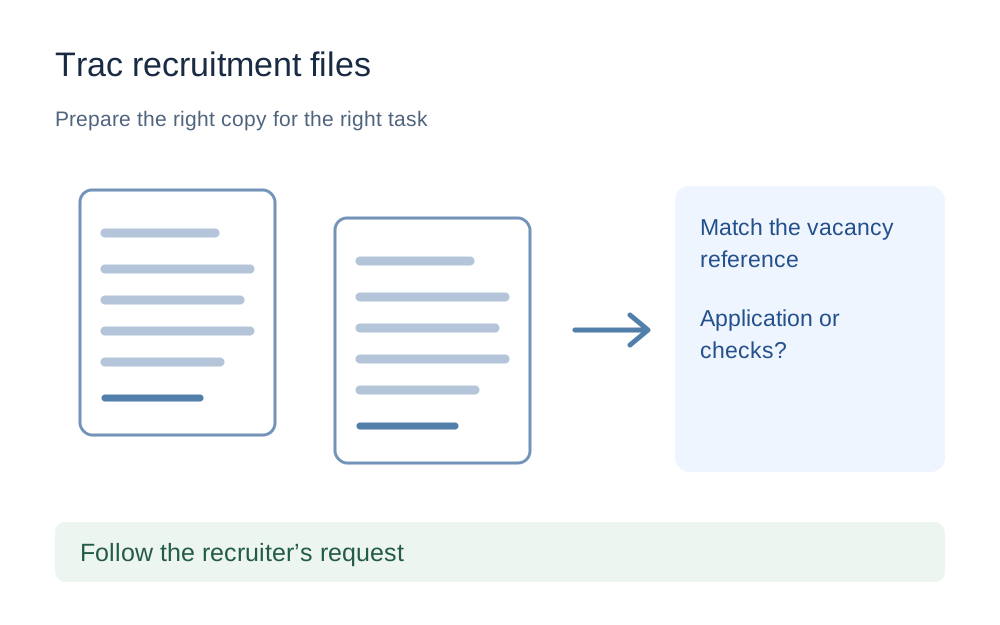
Keep the vacancy and the account together
Open your application from the recruitment account you used for that vacancy. Check the organisation, job title and reference before preparing a document. An attachment that belongs to an older application can look convincing in a folder even though it is the wrong version for the request now in front of you.
If you arrived through NHS Jobs, remember that the next stage may be handled in Trac rather than the NHS Jobs form itself. Read the address and the page heading. Do not alternate between two tabs and assume an action completed in one will immediately appear in the other. Work from the recruiter's current instruction and keep the relevant application open while checking what is required.
Submitted applications are not an editable document folder
Trac's official contact information directs applicants to their application account and explains that submitted applications cannot simply be edited afterwards. If you have noticed a mistake or need to provide an additional document, contact the recruiting organisation using the details for the vacancy rather than submitting an unrelated replacement file somewhere else.
A technical tool cannot reopen an application or attach evidence to a completed recruitment stage. It can only help prepare a file when there is an authorised place to provide it. That distinction saves time: changing a document from PNG to PDF will not resolve a permissions problem or create an attachment option that the recruiter has not made available.
Pre-employment checks may use a separate process
NHSBSA publishes an NHS England workflow in which digital pre-employment checks use DPEC, with limited circumstances where recruiting staff upload material to Trac. That is a specific organisational process, not a promise that every applicant or NHS trust uses the same screen. Follow the link and instructions sent for your own checks.
That published workflow also distinguishes the document types staff should and should not upload. It is a useful reminder not to treat a recruitment portal as a place to send every personal record you hold. If a request seems to ask for sensitive material through an unexpected route, confirm it with the recruitment team before supplying anything. Do not paste that material into this site's contact form.
Use the requirements beside the actual upload field
There is no universal Trac upload cap established by the official sources reviewed for this page. A form can have rules that depend on its purpose and the employer's process. Look for the accepted extensions, maximum size and number of files on the page where you have been asked to attach the document.
Write those details down together, including whether the limit applies to one file or the whole submission. Then open the compatibility checker and enter only the rules you have. The guide does not add a guessed number to the checker. If a screen names an unsupported format such as an editable office document, retain that format instead of converting it solely because our local tools focus on PDFs and images.
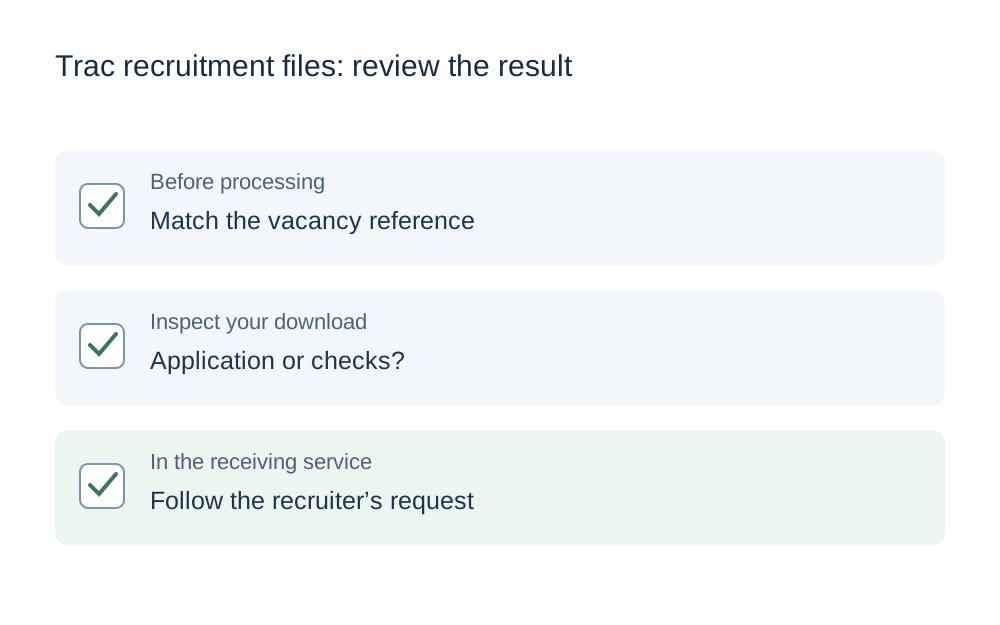
Check names, pages and orientation before size
Open the requested document and check that the information is complete. Certificates can have useful information on a second page or reverse side. A scan that looks fine as a thumbnail may have cut off the organisation name or part of a date. Fix the source capture when the document itself is incomplete; compression cannot reconstruct missing edges.
For a sideways scan, inspect each page rather than rotating the whole bundle automatically. The PDF rotation tool lets you identify the pages that need changing. Download the new copy and confirm that the other pages remain correctly oriented. This is particularly helpful when a bundle includes both portrait certificates and landscape records that were already readable.
Match the correction to the reported problem
When the receiving page rejects a PDF as too large, measure the original and try lossless PDF compression first. That operation repacks the PDF; it does not promise to shrink a collection of large scanned images. If the result cannot be reduced enough, use a better source export or ask the recruitment team how to provide the complete evidence.
When an image format is the problem, a genuine conversion changes its encoded contents. Renaming a phone image from .heic to .jpg does not do that. The HEIC converter can produce a JPEG for supported files, but you should still check the downloaded result and confirm that the employer accepts JPEG. Do not turn a multi-page certificate into one small screenshot simply to get past a file picker.
Confirm the upload, then confirm the application action
Choosing a file on your device is not necessarily the final action in the receiving portal. Look for the relevant upload, save or submit control and the confirmation displayed afterwards. The exact wording may differ, so follow what your page says rather than expecting a particular button from someone else's screenshot.
Where the portal offers a saved filename or preview, compare it with the file you prepared. Keep a note of the time and the application's reference for your own records. Avoid attaching the same document repeatedly while waiting for an update: several near-identical copies can make it harder for both you and the recruiter to identify which version was intended.
Give support enough detail without exposing the document
A clear technical report contains the browser, device, application reference, file format, measured size and exact error wording. It usually does not need the contents of your identity evidence in the first message. If a screenshot is useful, exclude unrelated personal details and check that it does not show a password or a private account link.
Use the recruiting organisation for questions about eligibility, requested evidence or changes after submission. Use the technical help route associated with the actual recruitment system for failures of the page itself. Make My Files Work cannot view or amend your Trac account. Its role stops at preparing and checking a local copy that you can then submit through the proper channel.
Questions that come up
Does Trac always use the same maximum attachment size?
The reviewed sources do not establish one limit for every employer and workflow. Read the current upload field and recruitment instructions. A limit quoted for a staff process, a different vacancy or another recruitment website should not be used as an automatic applicant preset.
Can I replace my submitted application with a new PDF?
Do not assume so. Trac's contact guidance says submitted applications cannot be edited. Ask the recruiting organisation how to correct information or provide a requested addition. A file converter cannot change the state of your application or override the recruiter's process.
Should I merge all pre-employment documents into one file?
Only when the receiving instructions ask for a combined document. Keeping evidence in its requested categories is often clearer than creating one large bundle. If you are asked to combine pages, check their sequence and legibility afterwards and keep the separate original files available.