The current eBay limits, with their wording kept in context
eBay's UK photo-upload guidance allows individual files up to 12MB and lists JPEG, PNG, GIF, TIFF, BMP, WebP, HEIC and AVIF. Its picture policy requires at least 500 pixels on the longest side. The upload-help article also gives 500 × 500 as minimum resolution advice and recommends roughly 1600 × 1600. Treat the square recommendation as useful preparation guidance, not a reason to stretch a rectangular photograph.
These are eBay's published figures, checked on 14 November 2026. Follow a more specific message in your actual listing editor if one appears. Make My Files Work supports fewer formats than eBay, so an image that our tools cannot process is not automatically unsuitable for the marketplace. In particular, do not convert a readable HEIC file merely because an older article says all marketplace sites reject it.
Measure the photograph you are really selecting
Open the folder used by the file picker and check the filename, modified date and thumbnail. A common source of confusion is keeping an original, a messaging-app copy and an edited copy together. The small image you inspected may not be the large original you selected for the listing. Give the working copy an understandable name and keep the original separately.
The image dimensions checker reports width and height for images it can decode. Compare those figures with the file's byte size. A 300-pixel thumbnail can occupy very few bytes while still looking poor when enlarged. Conversely, a high-resolution photograph may have plenty of useful detail but need a smaller export to meet the upload cap. Neither number replaces the other.
If the file is over the upload limit
For an ordinary product photograph, make a copy from the original and reduce only as much as needed. Start by considering whether the source is vastly larger than the listing needs. A reasonable reduction in pixel dimensions may preserve the detail buyers need while reducing the amount of data. Check labels, stitching, small print and surface marks after making the change.
The available size-target tools can attempt to reduce supported images, but an output is useful only if it still represents the item clearly. Their KB and MB labels use binary size targets, which may not match a marketplace's interpretation of those units. Leave a margin below eBay's stated maximum and measure the downloaded file. Do not assume the tool's success message is an eBay acceptance result.
When the picture is too small or blurry
Return to the camera original before trying an enlargement. A small image saved from an old listing, message or screenshot may already have lost important detail. Increasing its width and height makes more pixels, but does not recover a readable maker's mark or a clear view of damage. Retaking the photograph is often more useful than exporting the same soft image at higher quality.
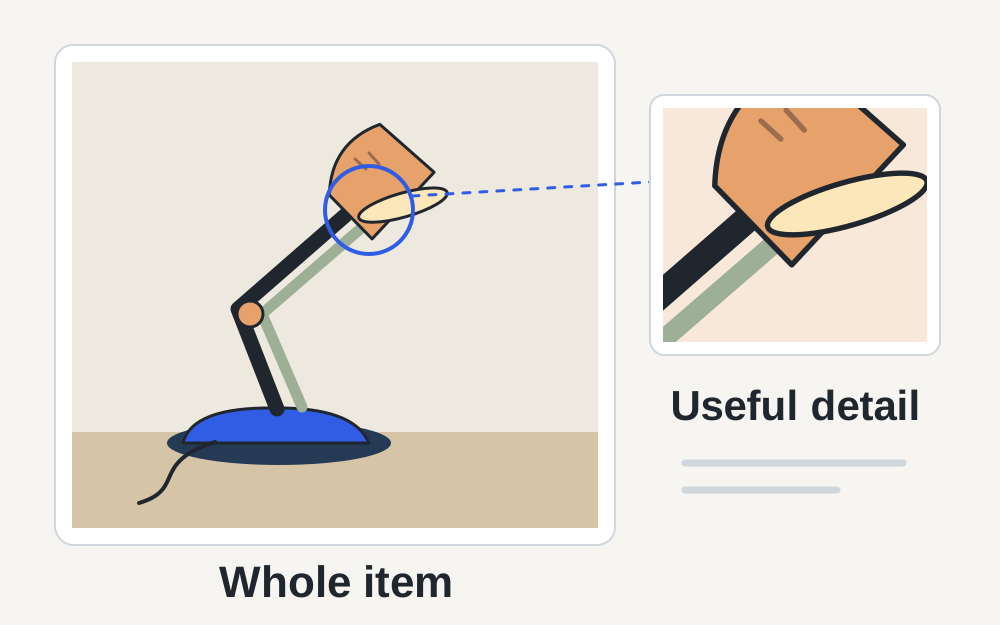
Inspect at normal viewing size as well as zoomed in. Buyers should be able to understand the item without relying on an enormous picture or tiny text embedded in it. For a set of photographs, use the first image to show the whole item and other images for details. This also makes it easier to recognise an accidental duplicate or a photograph of the wrong variation.
Separate upload errors from picture-policy problems
eBay's picture policy prohibits misleading photographs, added borders, marketing text and watermarks. It also restricts stock photos for used, damaged or defective goods. A file passing a format check does not establish that the photograph meets these rules. Technical preparation should preserve an honest view of the condition rather than disguise wear or alter what is included.
For example, converting a PNG photograph into JPEG is a file-format operation. Painting over a scratch is a content change. If a listing has been flagged, read the policy message rather than trying a different extension. Keep condition details visible, and describe them in the listing itself. Our tools cannot decide whether the depicted product matches the listing or whether you own rights to an image.
Troubleshoot a stuck listing editor in a useful order
Try uploading one suitable image to a saved draft before selecting the entire set again. If that succeeds, add the others gradually and note which file fails. This isolates a damaged export from a broader browser or connection problem. Avoid refreshing during an active upload unless you have saved the draft and are prepared to select the photographs again.
If every reasonable file fails, preserve the error wording, save your draft and try an up-to-date alternative browser. Check that the file is available locally rather than still downloading from cloud storage. An extension, expired session or service problem can interrupt a healthy file. There is little value in recompressing a photograph ten times when the editor cannot accept even one known-good image.
Review the saved listing, including its thumbnail
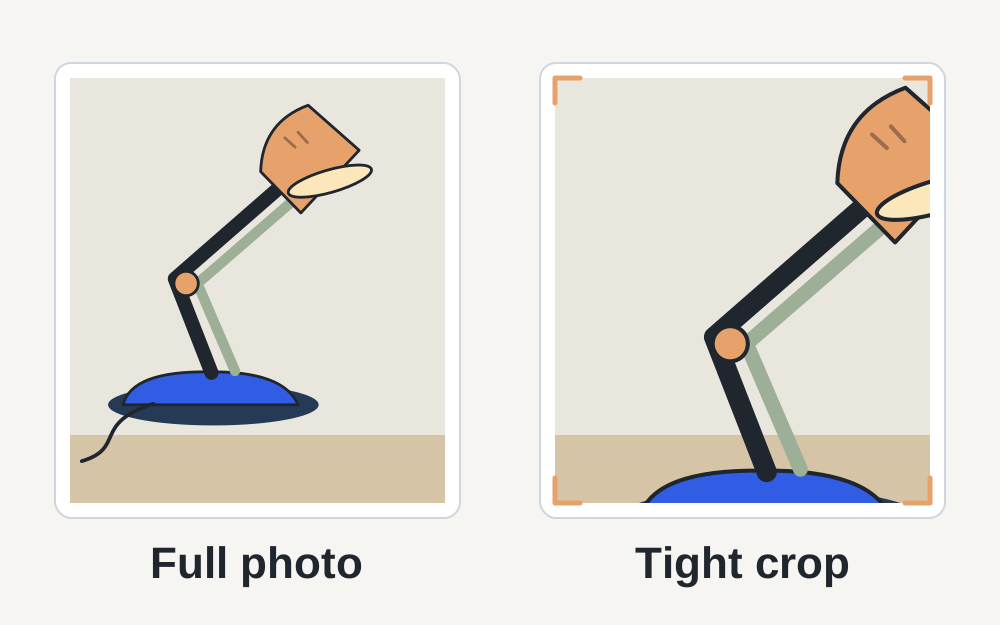
Once upload finishes, check the order and open the actual listing preview. A thumbnail may crop differently from the full photograph. Make sure the product remains recognisable and that no important part has disappeared from the first image. Reordering pictures may solve a poor first impression without changing the files at all.
Check the same preview on a narrow screen if possible. Fine packaging text that looked readable across a large monitor may disappear at phone size. Use an additional close-up where it helps, without replacing a clear overall photograph. If the file looks correct locally but poor only after upload, compare another freshly exported copy before assuming that a larger byte size will solve the presentation.
What Make My Files Work can check for an eBay photograph
The local checker can inspect a supported file's signature, size and available pixel dimensions. You can enter the requirements you have read on eBay and compare them with those measured facts. Selected files are processed in your browser; the checker does not sign in to your seller account, alter your listing or send the image to eBay.
Keep your final downloaded copy and upload it through eBay yourself. The tools cannot evaluate product accuracy, category-specific instructions, account restrictions or marketplace review decisions. If a conforming photograph keeps failing, give eBay support the exact error, the upload location, the browser and the measured file properties. That is more useful than reporting only that the photo is 'small enough'.
Questions that come up
Should I rename an HEIC file to JPG for eBay?
No. Changing the name does not change the encoded image. eBay's current upload guidance includes HEIC, so first try the original in the correct uploader. If you need JPEG for another workflow, use a genuine conversion and inspect its result; do not disguise one format as another.
Why does a successful upload still produce a poor listing photo?
Successful transfer proves that eBay received a file. It does not prove the composition, focus or thumbnail crop is useful. Compare the saved preview with the camera original, check whether the item is centred in the available frame, and replace a weak source photograph when necessary.