
Read the limits for the upload location you are using
Shopify's theme-image article has an upload-limits section specifying 20 megapixels and 20MB. Its product-media guidance and the Files requirements give 25 megapixels for their contexts. The theme article itself also contains broader quality advice mentioning 25 megapixels. These official pages were checked on 14 November 2026, and the wording is not fully consistent across every section.
For a theme-editor rejection, use the specific upload-limits section and the actual error as the starting point. Do not assume that a product image's acceptance proves the same file must work in every theme field. If the current interface appears to contradict the documentation, ask Shopify about that precise uploader rather than silently treating one number as universal.
Calculate megapixels from width and height
Multiply pixel width by pixel height, then divide by one million. A 5000 × 5000 image contains 25 megapixels, even if its JPEG file is only a few megabytes. A 4000 × 4000 image contains 16 megapixels. Those examples explain why reducing dimensions can solve a pixel-limit error while changing JPEG quality alone may not.
Use the image dimensions checker to inspect a supported source and repeat the check after export. Do not rely on an editor's zoom percentage or a filename containing the word small. A visually simple image can compress efficiently yet still contain a very large pixel canvas. Byte size and pixel count must both be considered.
Identify what the theme section actually needs
A header logo, a full-width banner and a square promotional tile have different shapes. Before resizing, open the relevant theme section and inspect its available image and layout settings. A wide image cannot fill a tall mobile area without cropping, empty space or a different display treatment. More compression does not change that geometry.
Decide which part of the image must remain visible. For a photograph, that may be the main subject; for artwork, it may be a simple mark. Avoid making crucial instructions available only inside an image that can crop. Put essential wording in the theme's ordinary text fields where practical, so it remains readable and can adapt to smaller screens.
If the image exceeds the pixel limit
Resize from the original while preserving the aspect ratio. Reducing the width and height together retains the image's proportions. Changing only one side to match a template can stretch products, faces or lettering. If a crop is needed, make it a deliberate composition choice and inspect what has been removed.
Check the resized export's measurements and appearance before uploading it. Keep the source file for another section or future redesign. A smaller image that fits the limit may still be unsuitable for a large banner if it started from a poor source. If fine detail is already missing, choose a better photograph or a simpler design rather than repeatedly enlarging it.
If only the byte size is excessive
Review the export format and the amount of image detail. A photographic banner often suits JPEG; artwork with sharp text or transparency may suit PNG. These are practical starting points, not fixed platform rules. Export a readable copy, measure its actual size and compare its visible quality with the original.
Shopify's theme guidance says storefront delivery can involve automatic optimisation and format selection. That is not a reason to upload a file that fails the admin limits, but it does mean manually crushing every suitable image to a tiny byte target is unnecessary. Fix the actual problem, preserve a useful source and inspect the storefront result rather than chasing a generic compression percentage.
When a banner crops despite the correct dimensions
The theme may fit the image into an area with a different aspect ratio from the file. A full-width desktop banner and a narrow phone layout can therefore show different portions. Inspect both views. Shopify's troubleshooting explains this as a display-shape issue and points to focal-point and cropping controls where available.
Use the theme's controls to position the important subject, then test the saved preview again. Do not assume that one universal banner dimension works for every theme and section. If the composition cannot survive the available crop, prepare a more suitable image or use the section's supported alternative layout. Avoid repeatedly resizing the same awkward crop without checking the actual display.
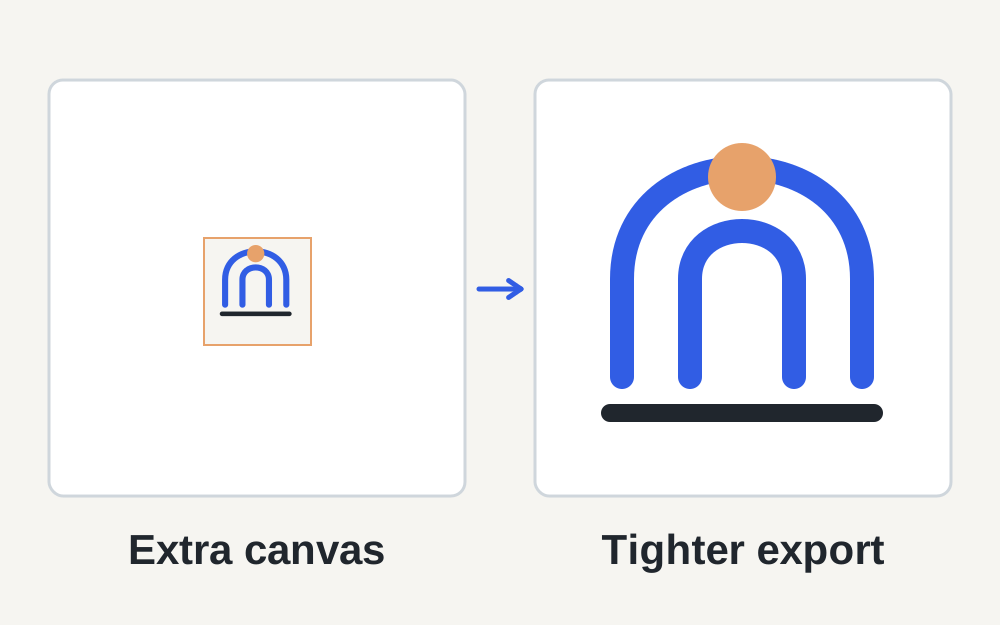
A small-looking logo may contain too much empty canvas
Open the logo file against a contrasting background and inspect the space around the mark. The file can have large pixel dimensions while the visible logo occupies only a small portion. In that situation, increasing the uploaded dimensions may simply enlarge the empty margins too. Shopify's theme troubleshooting identifies whitespace as a reason a header logo can appear small.
Adjust the source artwork carefully so the useful mark has an appropriate amount of surrounding space. Preserve enough room for the design to breathe, but remove unintended canvas left by an export. Check the result in the actual header because theme settings can also control the displayed size. A file measurement alone cannot tell you how large the mark appears within the canvas.
Check format, transparency and colour as separate issues
If a format is unsupported in the particular upload location, use a genuine compatible export rather than changing the filename. Shopify's different image workflows do not all have identical restrictions, and Make My Files Work supports fewer input formats than Shopify. For vector or specialised artwork, use the creating application rather than expecting every local tool to decode it.
When converting transparent artwork to JPEG, choose the background deliberately and examine the edges. If colours change, compare the original, the export and the storefront to see where the difference begins. Shopify's troubleshooting discusses colour-profile issues, but our tools do not certify colour accuracy. Avoid compensating blindly with saturation or brightness adjustments that may create a second problem.
Keep public storefront files separate from private documents
Shopify warns that files placed in the admin Files area should be intended for public access on the store. Do not use a theme-image workflow as a convenient holding area for private customer records, supplier paperwork or identity documents. A file being accessible through the admin does not make it an appropriate place for confidential material.
For an image upload problem, a non-sensitive test image and its measurements are usually enough to narrow the cause. Record the exact section, error text, format, dimensions and size. If the same error occurs with several suitable files, save your work and investigate the session or service rather than altering all of the store's artwork.
Review the saved storefront after the upload
Check the image in the actual section at desktop and phone widths. Confirm that the intended version appears, the subject remains visible and any accompanying text stays readable. If an older version persists, verify that the section change was saved before exporting yet another copy. Keep the successful source and export together with clear names.
Our local tools can inspect selected supported files and create certain conversions without uploading the source to our server. They do not access Shopify, publish a theme or verify every storefront breakpoint. Use the measurements to make an informed file change, then finish the job by reviewing the saved store and its actual layout.
Questions that come up
Why does Shopify say too large when my theme image is under 20MB?
The image may exceed the separate megapixel allowance. Calculate width multiplied by height and divide by one million. If that is the issue, reduce pixel dimensions proportionally; lowering JPEG quality at the same dimensions does not change the megapixel count.
Is the Shopify image limit 20MP or 25MP?
The official theme upload-limits section says 20MP, while product and Files guidance says 25MP, and some broader wording overlaps. Use the guidance for the exact uploader and its error message. The difference is why a single blanket limit for every Shopify image is unhelpful.