Use the product-media limits for product photographs
Shopify's product-media article states that product and collection images can be up to 5000 × 5000 pixels or 25 megapixels and must be smaller than 20MB. It recommends 2048 × 2048 for square product images. That recommendation is a useful display size, not an instruction to stretch every photograph into a square. The guidance was checked on 14 November 2026.
The same source lists a broad range of product-image formats, including PNG, JPEG, TIFF, BMP, GIF, SVG, HEIC and WebP. More specific upload guidance can override a general assumption: Shopify separately says collection images do not support WebP, although products and Files do. Check the exact location when a format works in one part of the admin and fails in another.
Calculate the pixel count instead of guessing from file size
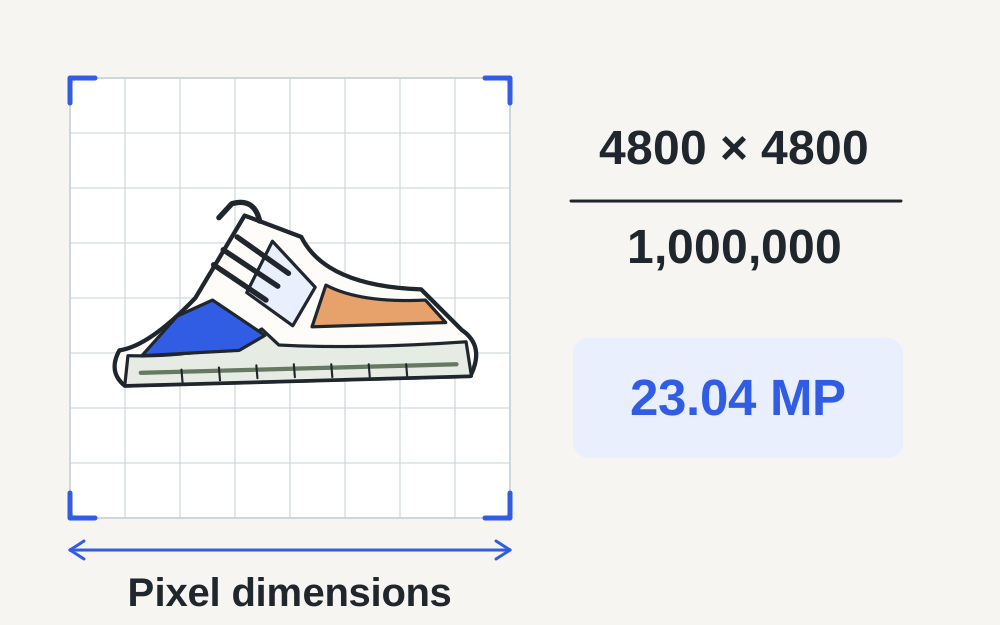
Multiply width by height and divide by one million to obtain megapixels. For example, a 4800 × 4800 image contains 23.04 million pixels. Its storage size might be modest if the scene compresses well, but it still needs that pixel area decoded. JPEG quality settings change stored data; they do not change this calculation unless the dimensions also change.
Use the dimensions checker to inspect a supported file and compare both sides with the published guidance. Check the final export rather than only the original photograph. A design application may export a larger canvas than expected, particularly when you have used a high-resolution preset. A file-size checker on its own cannot reveal that problem.
Choose a useful source, not the largest possible file
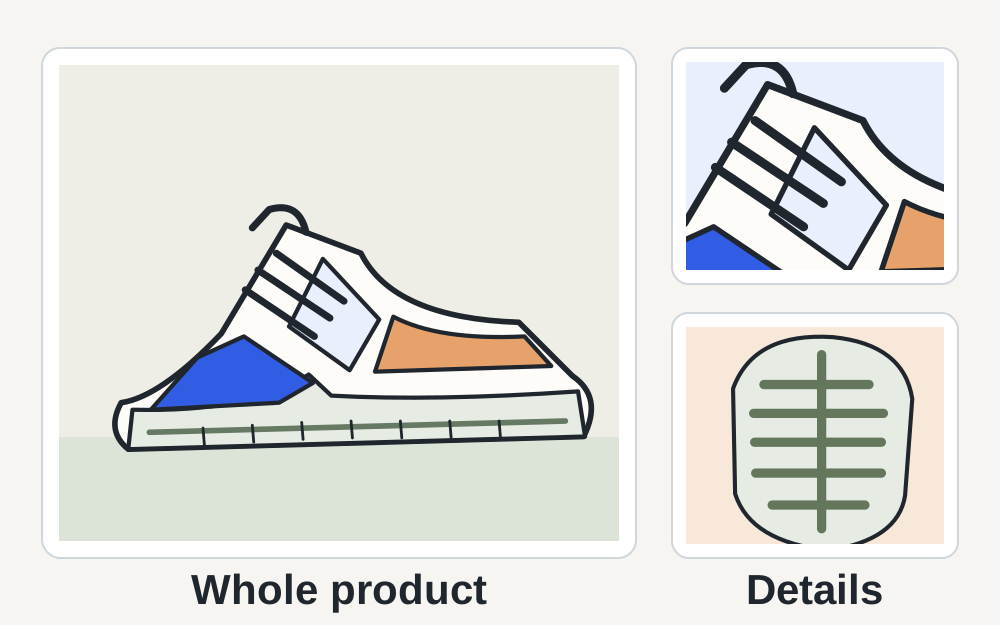
Keep a clear original that accurately shows the product. The objective is enough detail for customers to inspect the item, not maximum pixel dimensions for their own sake. Look at features such as material texture, closures, labels and finish. If those are out of focus in the source, a larger export does not create them.
For multiple images, decide which view answers which customer question. A clear overall photograph, a detail view and an appropriate scale reference may be more useful than several almost identical crops. File preparation should retain that information. Do not remove visible wear, change colours or otherwise alter what buyers will receive merely to make the photographs look more polished.
If the image has too many pixels
Resize a copy from the original while preserving its proportions. Reducing only JPEG quality at the same width and height will not reduce the megapixel count. Check the resulting dimensions after export. If the intended image is square, equal sides are appropriate; if it is rectangular, avoid forcing equal sides unless you deliberately crop the composition.
Review the reduced image at the display sizes your theme uses. Fine print may require a separate close-up even when the main product photograph looks good. Keep the original for later design changes or another sales channel. Working from successive reduced copies can make it difficult to recover a clean version when you need a different crop.
If the file has too many bytes
Consider whether the chosen format suits the image. A photograph may export efficiently as JPEG, while crisp line art or transparency may justify PNG. Choose a supported format and compare the actual output. A change that saves data but produces visible blocks around product lettering is not a useful result.
Make My Files Work offers certain conversions and bounded size reduction for supported inputs. It does not process every format Shopify accepts. If a TIFF, SVG or other unsupported source needs preparation, use the application that created it. Do not interpret our supported-format list as Shopify's list, and do not rename a file extension to disguise its contents.
Keep collection-image errors in their own context
If you see an error while updating a collection image, check Shopify's specific collection troubleshooting. The official guidance identifies both resolution and WebP compatibility as possible causes. A WebP product photograph may therefore need a genuine different-format export for use as a collection image, despite working elsewhere in the same store.
Keep the product photograph and collection artwork clearly named. A collection image may represent a broader group and use a different crop from an individual product. Replacing a file in one location does not necessarily update every other use. Check the saved collection and product separately rather than assuming a single successful upload has corrected both.
When upload succeeds but the storefront looks inconsistent
Inspect the image in the actual theme. Different aspect ratios can produce uneven rows of product cards or unexpected cropping. Choose a consistent main-image approach where practical, but do not stretch the products to make them align. The theme may offer display settings that change how an image is fitted into its available space.
Check a phone-width product page as well as the larger preview. A crop that looks balanced on desktop may lose important content on a narrower screen. If the image itself is clear but the displayed crop is poor, work on composition or theme settings rather than compressing it again. The problem is presentation, not necessarily file acceptance.
Colour and transparency deserve a separate review
Compare a converted image with the original before uploading it. A transparent background needs deliberate treatment if you switch to JPEG. Check pale edges, shadows and fine outlines against the new background. A white preview surface in your editor can hide transparency, so make sure you understand what the file actually contains.
If colours appear different after export or on the store, examine the source export and colour workflow instead of compensating blindly with saturation changes. Make My Files Work does not certify product colour accuracy across displays. For items where colour is important, keep a consistent photographic setup and retain the source material so you can investigate where the difference first appears.
When a suitable file still fails
Confirm that the selected image opens locally and is fully downloaded. Try one ordinary suitable file in the same upload location and note whether the error repeats. If all such images fail, inspect the session and service conditions before repeatedly rebuilding the original. Save unrelated store edits before refreshing or trying another supported browser.
When contacting Shopify support, provide the exact admin location, error, format, dimensions and measured size. These details distinguish a product-media restriction from a collection or theme problem. Our local tools do not access your store, publish images or change theme settings. After preparing a copy, upload it yourself and inspect the saved product page before considering the task finished.
Questions that come up
Why does a Shopify image under 20MB still fail?
It may exceed the relevant pixel limits, use a format unsupported in that particular field or encounter another upload problem. Check width, height and the exact location. Reducing compression quality alone will not reduce the image's megapixel count.
Should every product image be exactly 2048 × 2048?
Shopify recommends that size for square product imagery. It is not a reason to distort a rectangular photograph or ignore the theme's composition. Use an appropriate source and consistent presentation, then inspect how the image looks in the actual product and collection layouts.