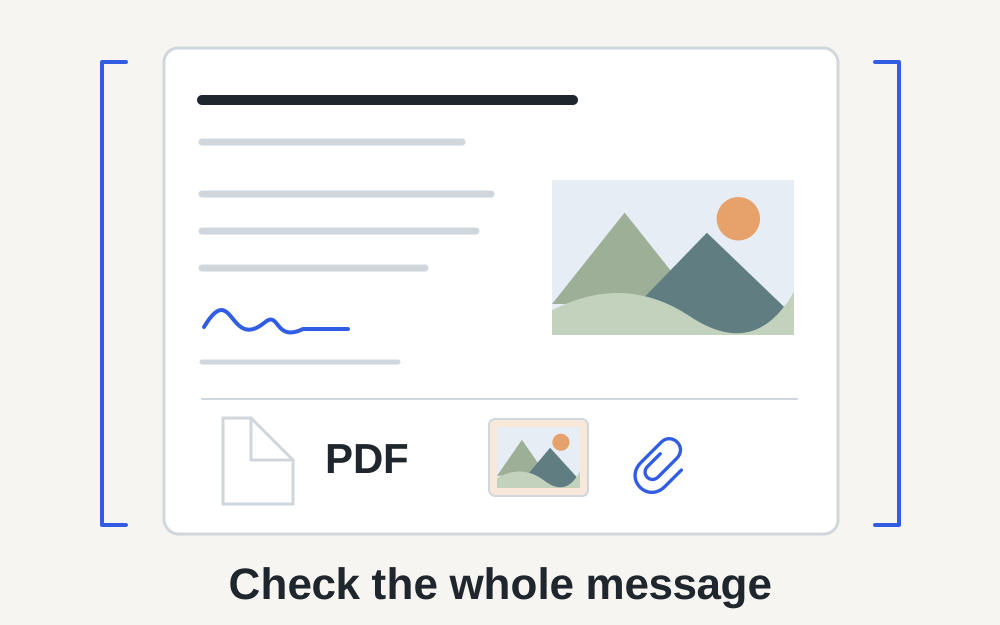
The 25MB figure needs a little context
Microsoft's Outlook.com sending-limits article gives a 25MB attachment file-size limit. Its attachment troubleshooting guidance also describes a 25MB message limit including text, inserted images and attached files. Leave room for the whole message rather than assuming a file exactly at the stated cap will work. These official pages were checked on 14 November 2026.
This does not establish a universal limit for every product called Outlook. Exchange, Microsoft 365 business mailboxes and third-party accounts can have separate policies. Read the account-specific error or ask the administrator when the address belongs to an organisation. Do not change a well-prepared document to fit a number taken from an unrelated Outlook desktop article.
Look at the complete message, including the conversation
A draft can contain more than the file you have just added. Check for duplicate attachments, inserted photographs, old message content and large signatures. If you are forwarding a conversation, the material carried with it may differ from what appears in a new blank message. Start with the actual attachment list rather than guessing from the document's filename.
For a practical test, save the message text and create a new draft addressed as intended, then attach the final file once. Do not send a test containing confidential information to an unrelated person. If the fresh draft behaves differently, investigate the original message before reducing image quality or rebuilding a PDF that was already acceptable.
Read the error before choosing a fix
An attachment-size warning, a full-mailbox warning and a connection error are different problems. Microsoft notes that a full Outlook.com inbox can prevent sending or receiving. A document conversion will not create mailbox space, restore a lost connection or change a recipient's policy. Preserve the exact wording and the point where the failure occurs.
Check whether the message remains in Drafts or Outbox and whether the attachment is still uploading. Wait for an active transfer to finish before trying another copy. If a cloud-stored file is only a placeholder on the computer, download it properly and confirm that it opens. A file picker displaying a name does not always mean all of its data is available locally.
Choose an attached copy when the recipient needs one
A traditional attachment gives the recipient a copy of the file. A OneDrive link gives access to a remotely stored item. These are different delivery methods, even if Outlook presents both in the same attachment menu. Read the recipient's instructions, particularly for application documents, automated processing or evidence that must be retained as an independent copy.
If a copy is mandatory, work from the original document and make the smallest suitable adjustment. Remove accidental duplicate pages only when they are genuinely unnecessary. For photographs, check whether the recipient needs full resolution or simply a clear view. For a signed form, preserve all required pages and visible details. The aim is a usable document, not merely a smaller number.
Understand the limits of PDF compression
The PDF compressor here attempts lossless repacking. It does not promise to reduce a large scan to any requested size, and it does not replace a scanner's image settings. A document that already uses efficient compression may remain similar in size. If no valid smaller output is possible, the tool reports that limitation instead of claiming savings.
When the PDF is dominated by page photographs, a fresh scan or export may offer more control. Make a separate copy and inspect fine text, page edges and signatures before sending. Keep selectable text where it matters to the recipient. Converting every page into a low-quality image can make a compact file that is much harder to read or search.
Use OneDrive only when link sharing suits the task
Microsoft supports sending OneDrive links as an alternative for large files. Its help explains that links keep the email smaller and provide access controls. Check the specific sharing options shown for your account. Choose viewing or editing permission deliberately and avoid granting broader access just because the first link did not open for someone.
A useful check is to confirm the exact recipient address against the sharing permission. Someone reading from a different account may not have the access you expected. Keep the file available after sending; moving, deleting or restricting it can interrupt later access. If the recipient needs an immutable record, agree how they will download and retain the version you intended them to review.
If images are large, change the file rather than its appearance in the email
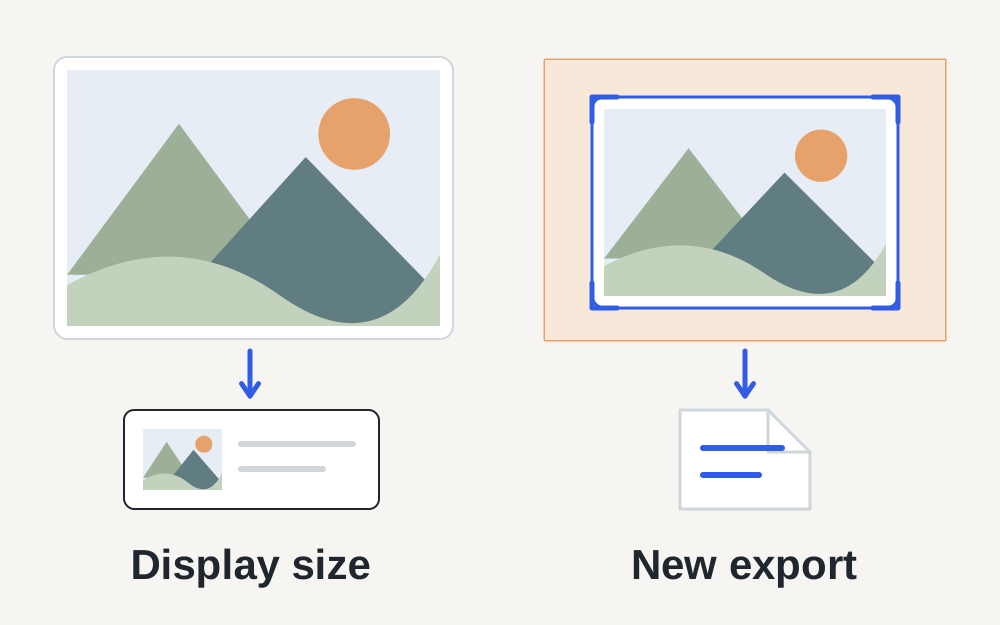
Dragging a picture smaller inside a message changes how it is displayed. It does not reliably mean the underlying image file has become smaller. To reduce the actual data, export a separate smaller image and measure that result. Compare it with the original before attaching it, especially if the picture contains detailed paperwork rather than a casual photograph.
Choose an accepted output format with the recipient in mind. JPEG can suit a photograph, while PNG may retain sharp text or line art more cleanly. Changing a filename ending from one format to another is not a conversion. If transparency is involved, inspect the background after export so a pale mark does not disappear against an unexpected colour.
Work through browser and account problems without losing the draft
If a modest, readable attachment fails repeatedly, save your message and try Outlook.com in another current browser. Check whether the issue affects one file or all files. Microsoft publishes attachment troubleshooting and known-issue guidance, which is a better next stop than repeatedly rebuilding the document when the service itself is having trouble.
When a message sends from Outlook.com on the web but stays stuck in a desktop application, investigate that application's account connection and synchronisation. The reverse can also help narrow the problem. Do not delete the only copy of a draft while experimenting. Keep a local record of the final document and message so you can retry without recreating the whole submission.
Verify the final handover
Open the exact file that will be attached and confirm that its name, contents and date are correct. Remove superseded copies from the draft. If you use a link, describe the file clearly in the message and check its sharing settings. A recipient should not have to choose between several attachments called final, final-new and final-latest.
Make My Files Work measures supported files locally; it does not connect to your mailbox, send a message or confirm delivery. After sending an important document, check for a failure notification and any required acknowledgement. For a continuing Outlook.com problem, report the account type, browser, exact error and attachment size to the relevant support team without sharing unnecessary private content.
Questions that come up
Why is an attachment under 25MB still rejected?
The whole message may contain other data, and a separate account or recipient policy may apply. A security block, incomplete transfer or mailbox problem is also possible. Check the exact warning and try a fresh draft with the final file once before making a more heavily compressed copy.
Does a OneDrive link count as an uploaded document for an application?
Only if the receiving process allows links. Many application systems expect an attached file or a file selected in their own upload field. A link can work perfectly in a browser and still fail the submission instructions, so check those instructions before substituting one.