LinkedIn's published profile-photo specifications
LinkedIn's upload-help article lists JPG or PNG, a maximum file size of 8MB and profile-photo dimensions between 400 × 400 and 7680 × 4320 pixels. It says GIFs are not supported. These are the figures in the official article checked on 14 November 2026. The separate background-photo recommendation is not a portrait size.
Use the actual upload message alongside this guidance. An image comfortably within the listed bounds is easier to troubleshoot than one right on a boundary. Make My Files Work can measure supported dimensions and file size, but it cannot inspect LinkedIn's account state or decide whether the chosen picture meets all of its profile-photo conditions.
Find the original photograph first
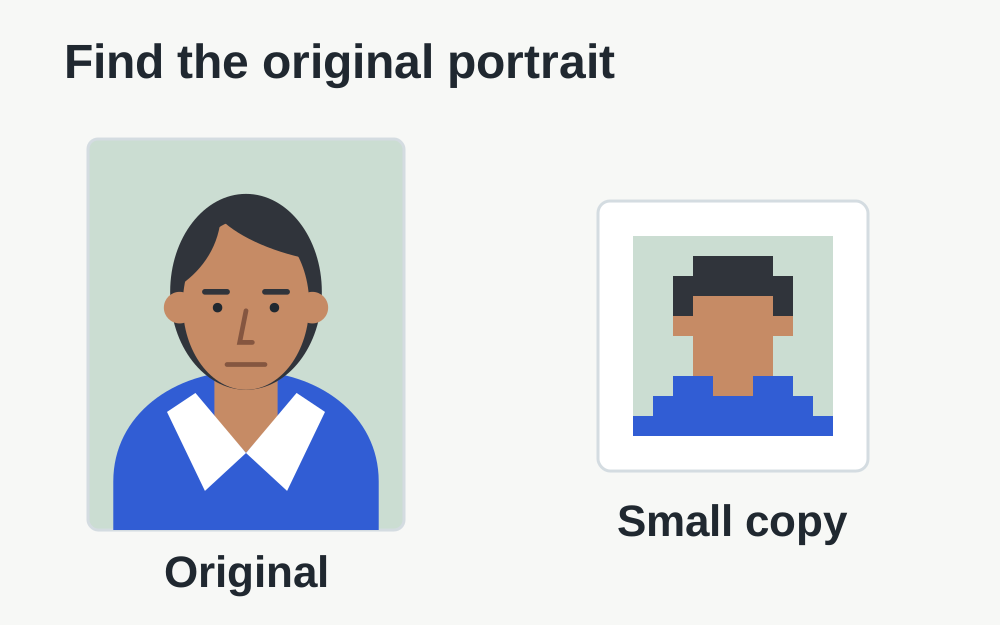
A picture copied from an old profile, email signature or contact thumbnail may look acceptable at a tiny size but contain little detail. Before increasing its dimensions, look for the original camera file. Enlarging a small copy creates more pixels without recovering a clear eye line, hair detail or sharp edges that were lost earlier.
If a colleague or photographer supplied the image, ask for an appropriate full-quality export rather than taking a screenshot of their preview. Check the file you receive, because a messaging service can produce a smaller copy during transfer. Keep that source separately from the version prepared for the profile so you can make a fresh export later.
Inspect pixels and bytes without confusing them
Pixel dimensions tell you how much image area exists. Byte size tells you how much data is used to store it. A 300 × 300 portrait may be a tiny file and still fall below the stated dimensions. A much larger photograph can be within the size cap but need careful cropping to work well as a profile image.
Use the image dimensions checker on the intended file, then inspect its file size. Check both figures after an export as well as before it. Some applications resize during saving, and a filename such as high-resolution does not establish anything about the actual pixels. Write down the measurements if you are comparing several copies.
Use a suitable crop without stretching the portrait
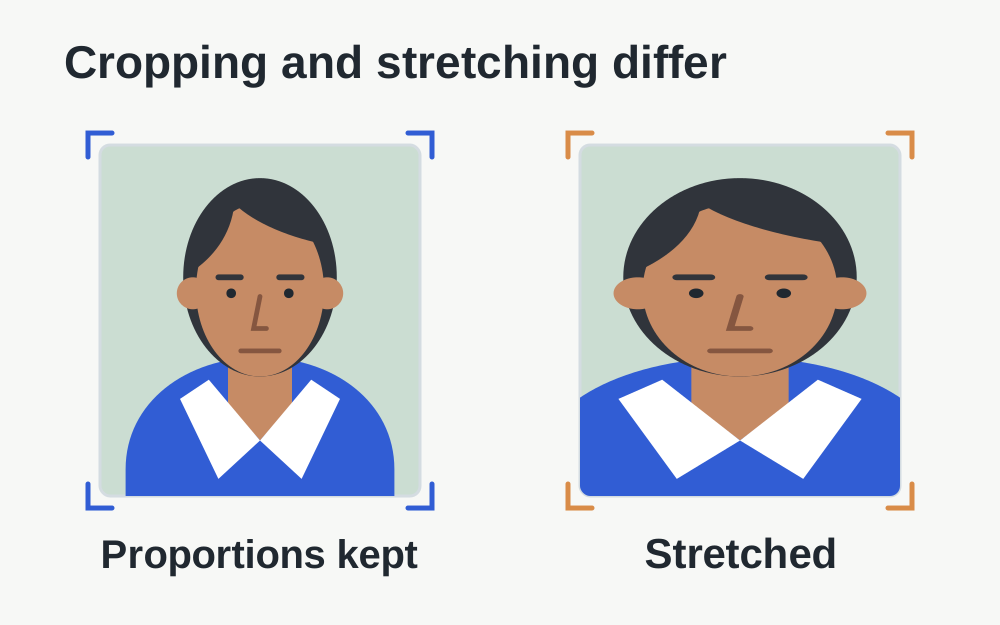
A profile photograph is displayed in a small area, so choose a source with enough room to position the face clearly. Do not squash a rectangular photograph into a square by changing width and height independently. Stretching changes proportions. A deliberate crop or the platform's positioning controls can adjust the frame without distorting the person.
Preview the image at the size a visitor will see it. Fine background detail, a distant face or a full group photograph may not communicate well in a small portrait. If the source requires an extreme crop, choose another photograph with more suitable framing. File compression cannot solve a composition in which the important subject occupies only a tiny part of the image.
Convert only when the format needs changing
The current profile guidance names JPG and PNG. If your source is HEIC or WebP, create a genuine supported export when necessary. Renaming the file to .jpg leaves the encoded data unchanged. After conversion, open the result and confirm its orientation, colour appearance and framing before returning to LinkedIn.
For a transparent PNG, decide whether transparency is actually useful for this portrait. JPEG requires a solid background. The relevant conversion tool will ask for a background where transparency would otherwise be lost. Check the edges of hair or clothing against the chosen colour, because a clean local preview on one background can look different on another.
Reduce a large photograph without making it look worse
If the file is too large, work from the original and choose an export suited to a small on-screen portrait. There is little benefit in sending vastly more detail than the display needs if it causes repeated failures. Preserve enough pixels for the required dimensions and avoid excessive compression that softens facial detail.
Compare the final copy with the source at a sensible viewing size. Look for block patterns in shaded areas and rough edges around glasses or hair. A large percentage saving does not establish a good result. If the image is already small enough, more compression may only reduce its quality without resolving the upload problem you started with.
When upload succeeds but the photo looks poor
First check the source at the same display size. If it is already blurry, return to a cleaner original or choose another photograph. A format conversion cannot bring a missed focus back into focus. If the source is clear but the profile looks wrong, check the selected crop and whether an old version is still being displayed.
Open the saved profile in a fresh view and compare it on a phone-width screen and a larger display. Make sure the intended file was selected and the change was saved. Avoid repeatedly exporting the same damaged copy; each new edit should start from a suitable source. Keep changes purposeful so you can see whether framing, source quality or the upload itself caused the issue.
When every suitable photo fails to upload
LinkedIn recommends trying a different browser if the file meets its specifications but still will not upload. Before doing so, check that the photograph opens locally and is fully downloaded from cloud storage. A placeholder or interrupted download can be selected by name without providing the image data the uploader needs.
Save any profile edits and retry through the ordinary profile interface. Note whether the failure happens before a preview, during upload or when saving. If several modest JPG or PNG files fail in the same way, the account session or service may be more relevant than the photograph's compression. Record that pattern when asking LinkedIn for help.
Keep the profile portrait separate from other branding
A company logo, a personal portrait and a cover image serve different purposes and may have different rules. Do not replace the portrait with a banner export just because it has a familiar filename. Organise those files clearly so you can select the right version when updating several parts of a profile at once.
Make My Files Work processes supported selected files locally and does not connect to LinkedIn or publish changes. Its checks cannot certify likeness, policy compliance or how every device will display the profile. After using a tool, upload the chosen copy yourself and inspect the saved profile. A successful local conversion is preparation, not completion of the profile update.
Questions that come up
Is a 400 × 400 image always a good LinkedIn portrait?
It meets the lower dimensions stated in the linked help, but its focus, crop and source quality still matter. A poor photograph at those dimensions remains poor. Use a clear original with suitable framing, then check the actual profile preview rather than judging from dimensions alone.
Can I upload a GIF profile photograph?
LinkedIn's cited profile-photo guidance lists JPG or PNG and says GIFs are not supported. Use a genuine supported still-image export where appropriate. Changing the extension from GIF to JPG is not a conversion and does not make the data a readable JPEG.